Open The Advanced Sidebar Editor In Nextcloud Calendar

Open The Advanced Sidebar Editor


1) Log in to Nextcloud.


2) Navigate to Nextcloud Calendar as described here.


3) If the calendar containing the desired event is not visible, make it visible as described here.


4) Navigate to the desired event as described date or event as described here.


5) Open the event information popup or the event editor as described here.


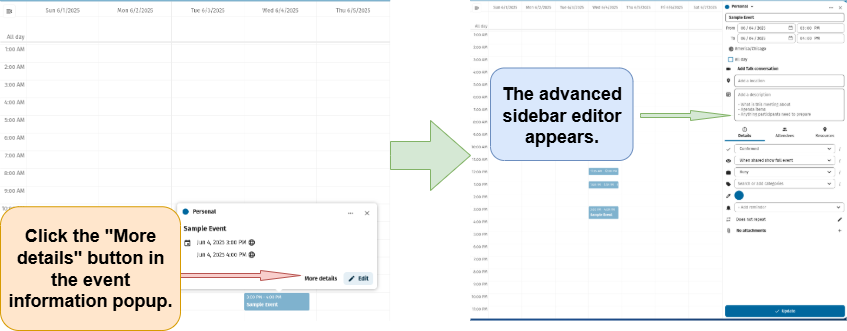
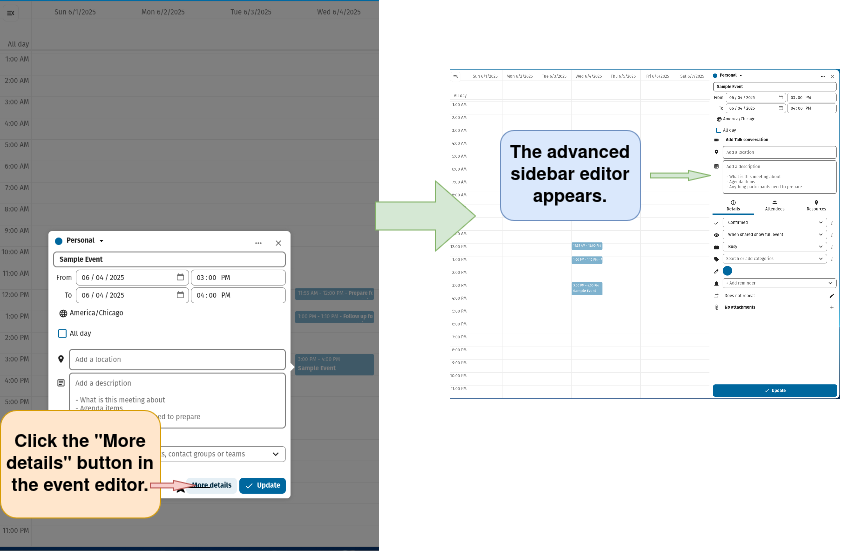
6) Open the advanced sidebar editor.


Note: The advanced sidebar editor can be opened from either the event information popup (see 6a) or from the event editor (see 6b)


6a) Open the advanced sidebar editor from the event information popup


image


6b) Open the advanced sidebar editor from the event editor


image


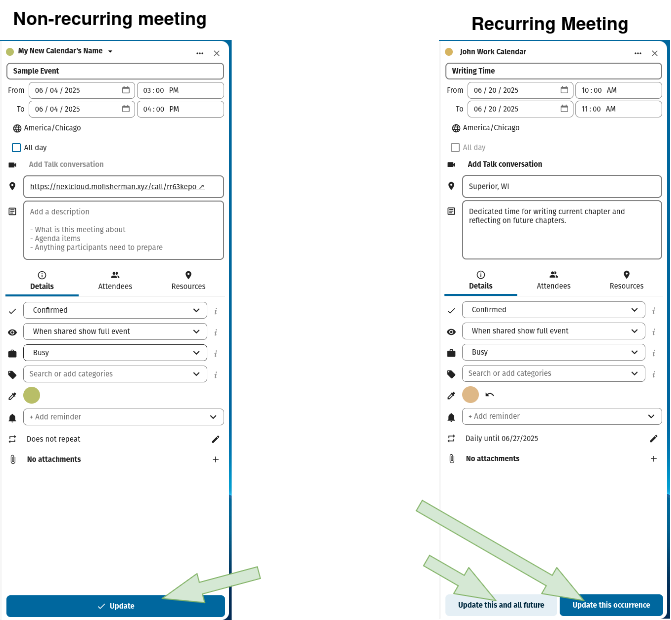
Note that the advanced sidebar editor has an update button at the bottom if the event is non-recurring. If the event is recurring, both an “Update this occurrence” and an “Update this and all future” appear at the bottom of the advanced sidebar editor. A click on either of these buttons saves changes made to an event in the advanced sidebar editor.
image

Add A Nextcloud Talk Conversation To A Calendar Event
Assign An Event Confirmed, Tentatvive, Or Canceled Status In Nextcloud Calendar
Select Event Availability As "Show Full Event", "Busy", Or "Hide Event"
Assign An Event Busy Or Free Status In Nextcloud Calendar
Edit An Event In Nextcloud Calendar, Comprehensive Guide
Change An Event's Color In Nextcloud Calendar
Assign Interval Between Event Reminders In Nextcloud Calendar
Edit Interval Between Event Reminders In Nextcloud Calendar
Assign A Category To An Event In Nextcloud Calendar
Assign An Event To Receive A Notification Reminder or An Email Reminder
Remove An Event Reminder In Nextcloud Calendar
Set Up Or Edit A Recurring Meeting, How Often The Meeting Recurs, And A Stop Date For The Recurring Meeting In Nextcloud Calendar
Add An Attachment To An Event In Nextcloud Calendar
Remove An Attachment From An Event In Nextcloud Calendar
Set Up Or Edit A Recurring Meeting, How Often The Meeting Recurs, And A Stop Date For The Recurring Meeting In Nextcloud Calendar
Assign An Event A Reminder Type Of "Relative To Event" Or "On Date" In Nextcloud Calendar
Assign An Event A Reminder Type Of 'Relative To Event' Or 'On Date' In Nextcloud Calendar
Find A Time When All Event Attendees Are Free, Schedule An Event When All Attendees Are Free
Remove An Attachment From An Event In Nextcloud Calendar
Find A Time When All Event Attendees Are Free, Schedule An Event When All Attendees Are Free In Nextcloud Calendar
Remove An Event Reminder In Nextcloud Calendar
Add An Attachment To An Event In Nextcloud Calendar
Assign An Event To Receive A Notification Reminder or An Email Reminder
Set The Length Of Time Betwwen Event Reminders
Set An Event's Status As Confirmed, Tentatvive, Or Canceled In Nextcloud Calendar
Assign An Event Busy Or Free Status In Nextcloud Calendar
Assign A Category To An Event In Nextcloud Calendar
Set Event Availability As "Show Full Event", "Busy", Or "Hide Event" In Nextcloud Calendar
Change The Amount Of Time Between Event Reminders Being Sent
Change An Event's Color In Nextcloud Calendar
Add A Nextcloud Talk Conversation To A Calendar Event
Edit An Event In Nextcloud Calendar, Comprehensive Guide