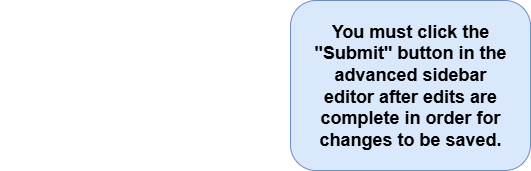
Set Up Or Edit A Recurring Meeting, How Often The Meeting Recurs, And A Stop Date For The Recurring Meeting
1) Log in to Nextcloud.
2) Navigate to Nextcloud Calendar as described here.
3) If the calendar containing the desired event is not visible, make it visible as described here.
4) Navigate to the desired event as described date or event as described here.
5) Open the event information popup or the event editor as described here.
6) Open the advanced sidebar editor as described here.
7) Set up or edit a recurring meeting
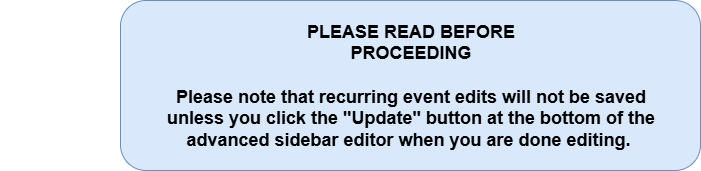
7a) Setting a meeting to recur for the first time
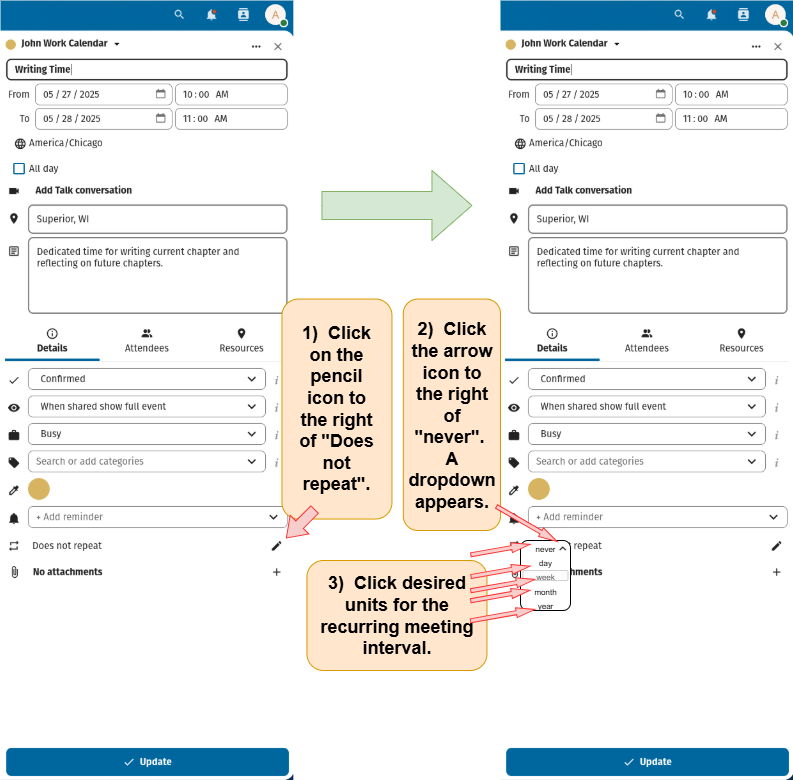
When section 27a is completed, go to section 27c.
7b) Editing recurring meeting settings for an event that is already set to recur.
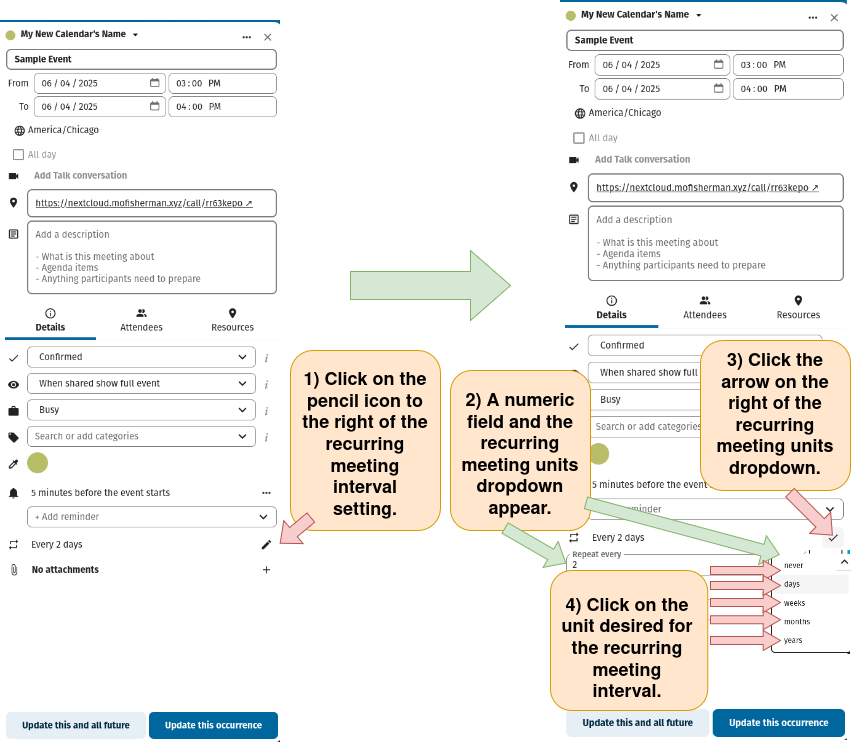
7c) Customize the recurring meeting interval
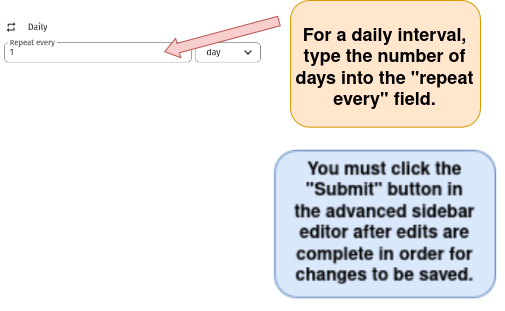
If “day” is selected in the dropdown
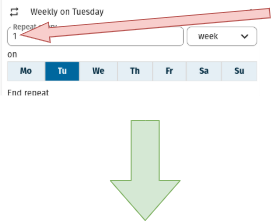
If “week” is selected in the dropdown
A “Repeat every” numeric field appears. Click on the “Repeat every” field and type in the number of weeks after which the recurring meeting will recur.
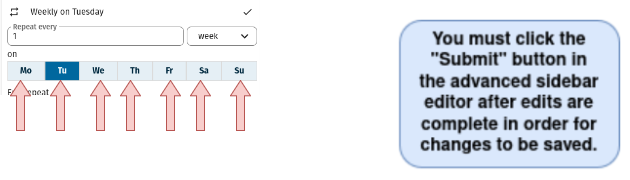
A calendar showing the days of the week also appears. Click on the desired day(s) of the week on which you would like the meeting to repeat. Note that the day(s) of the week selected are highlighted in a darker blue.
If “month” is selected in the dropdown
A “Repeat every” field appears. Click on the “Repeat every” numeric field and type in the number of months after which the recurring meeting will recur.
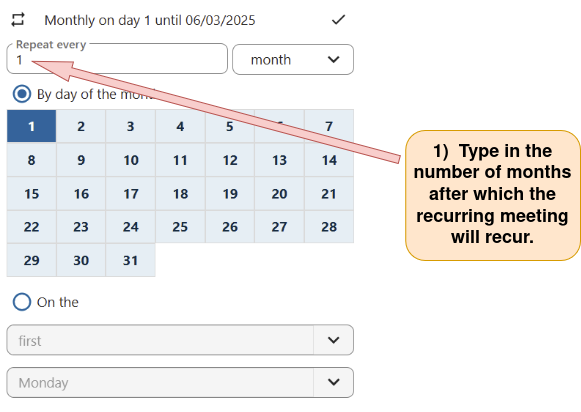
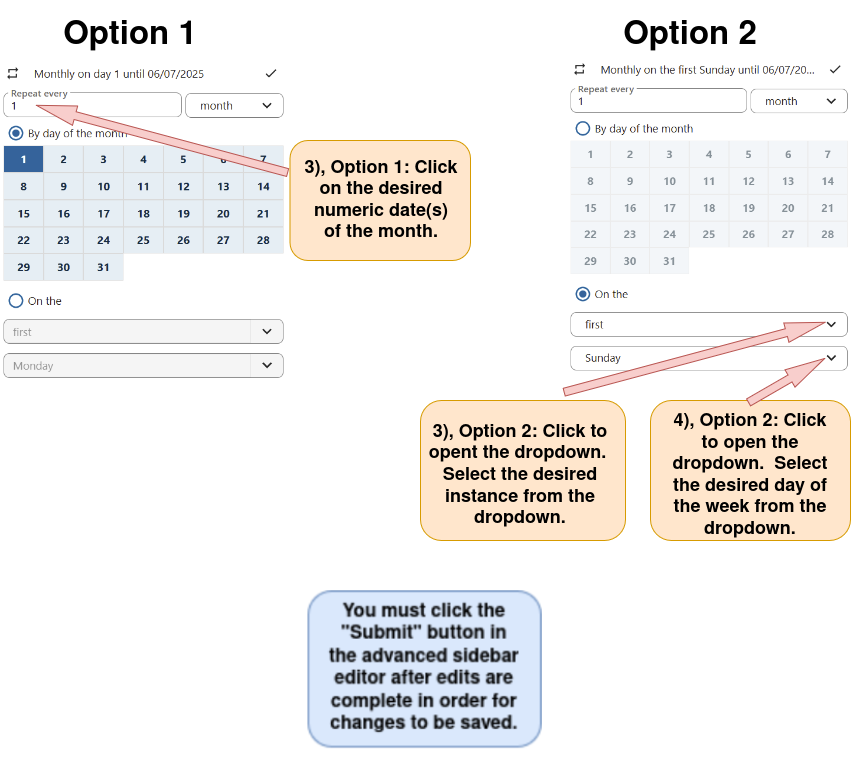
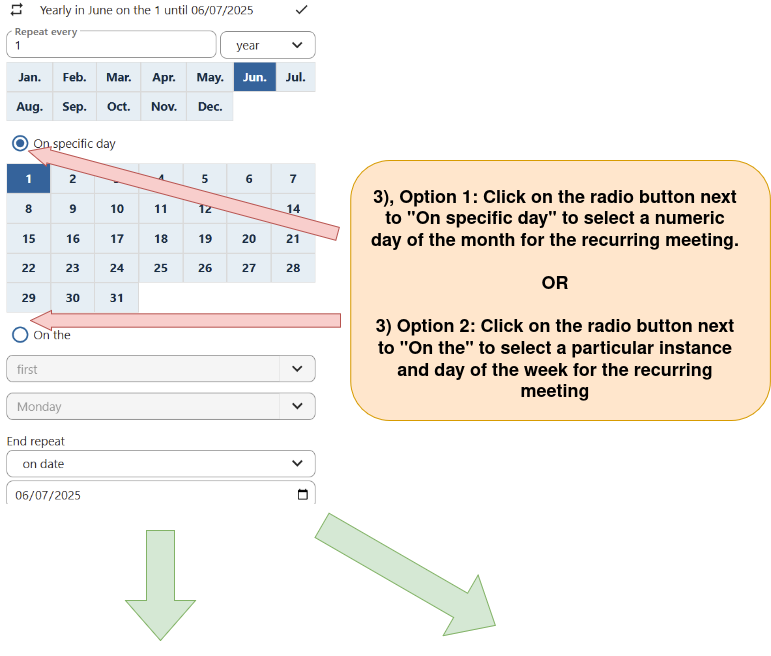
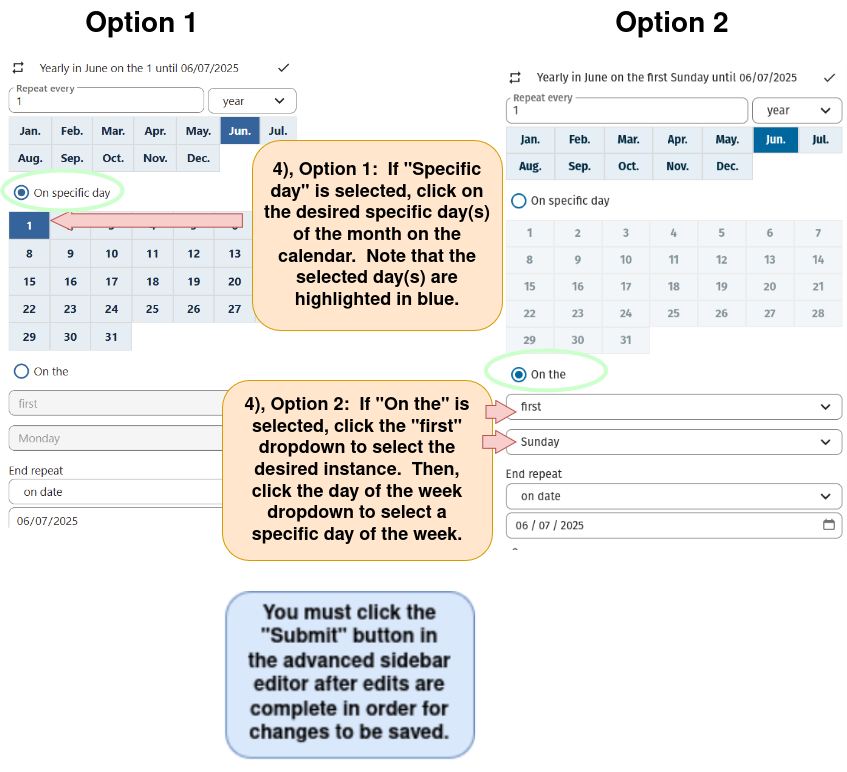
Choose between scheduling the recurring event on a given numeric day of the month OR by scheduling the recurring event on a specific instance of a day of the week. See directions below.
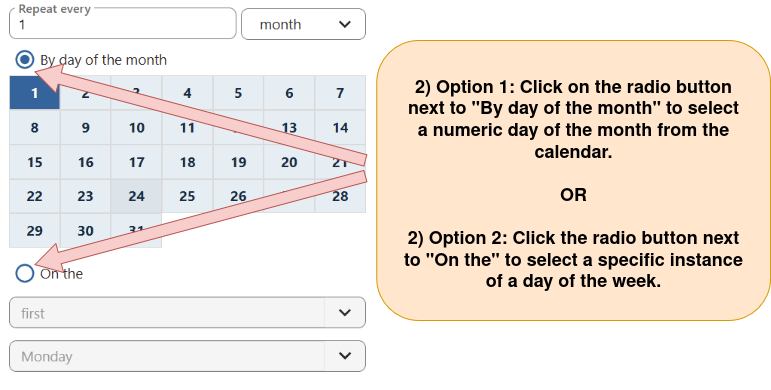
Follow the directions below.
If “year” is selected from the dropdown
A “Repeat every” numeric field appears. Follow the directions below.
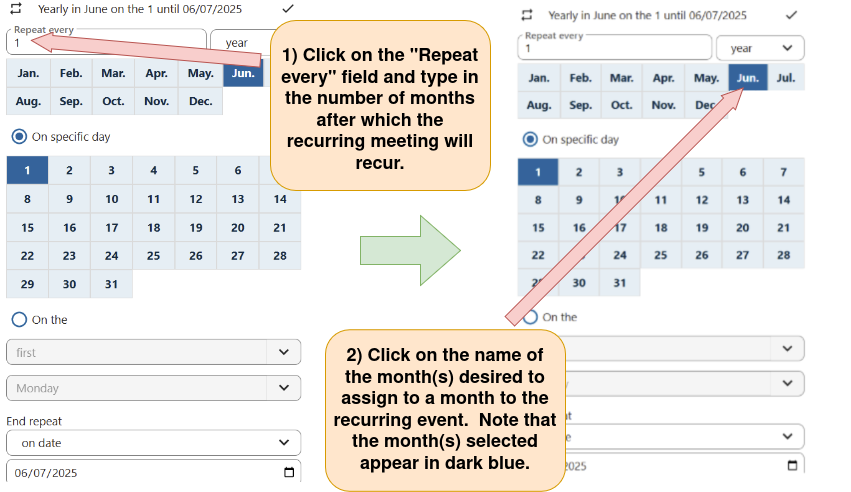
Choose between scheduling the recurring event on a given numeric day of the month OR by scheduling the recurring event on a specific instance of a day of the week. See directions below.
7d) Choose when a meeting stops recurring
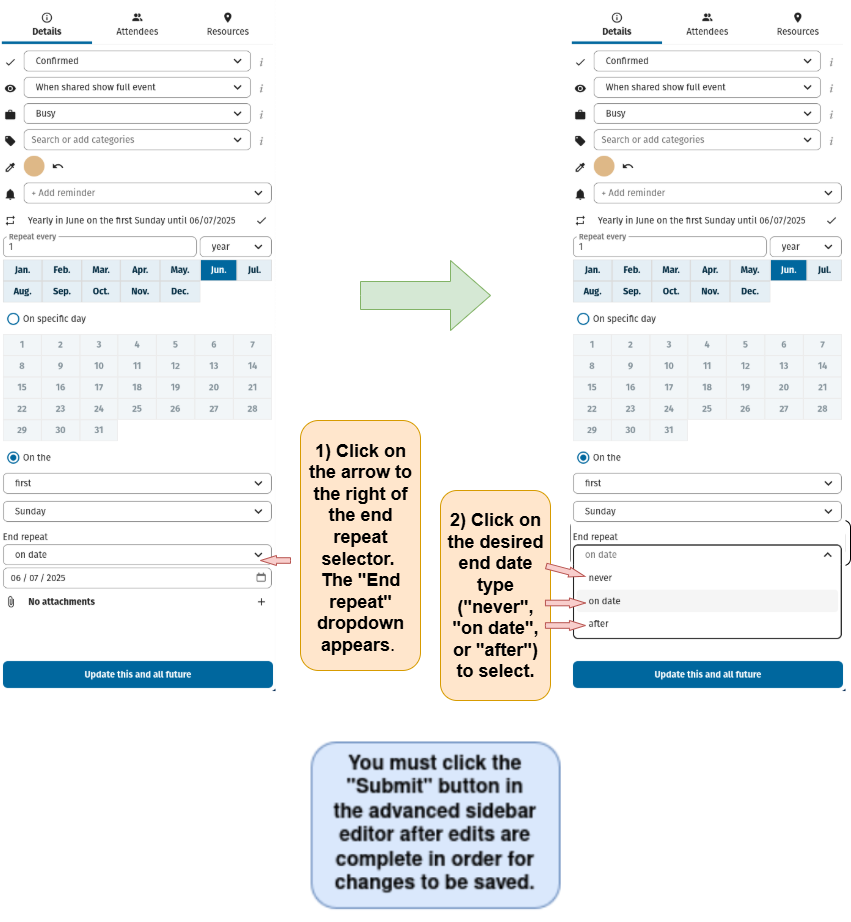
Regardless of whether “day”, “week”, or “year” is selected as the event repeat unit, the “End repeat” dropdown appears.
Follow the directions below to select a recurring meeting end date type.
If “on date” is selected
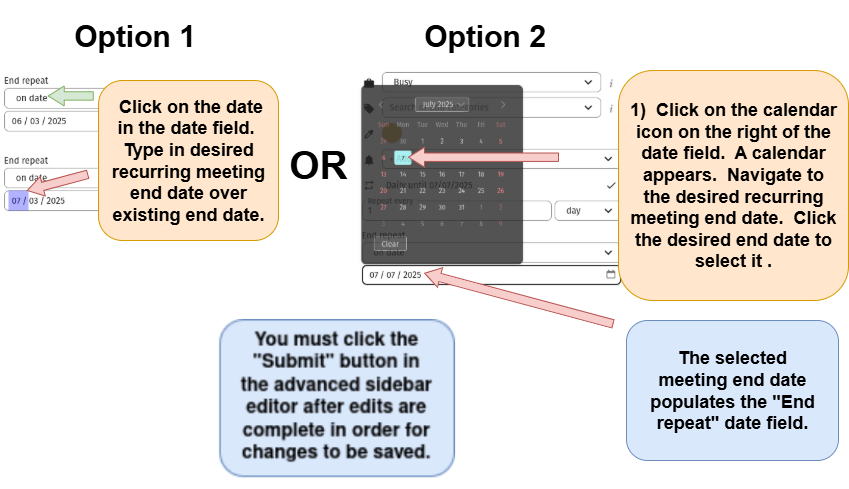
If “on date” is selected in the “End repeat” dropdown, a date field appears.
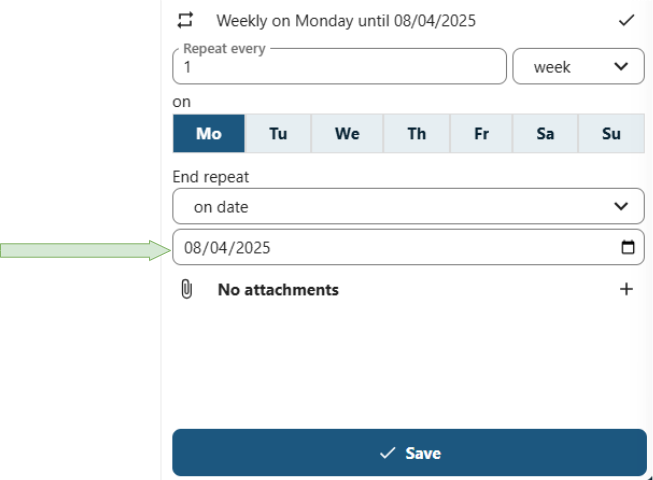
The “End repeat” date can be assigned by either:
Option 1: Clicking on the date in the date field and typing in the desired end repeat date over the existing end date.
OR
Option 2: Click on the calendar on the right of the date field. A mini-calendar appears. Navigate to the desired recurring meeting end date and click on it.
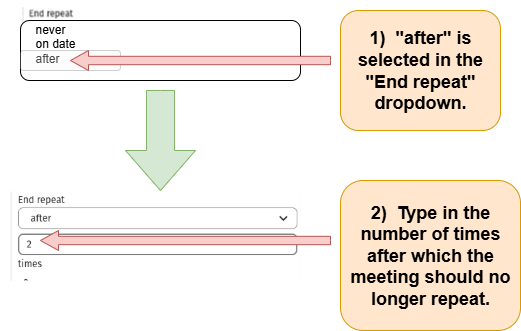
If “after” is selected
If “after” is selected in the “End repeat” dropdown, a numeric field appears. To assign the number of times after which a meeting will no longer repeat, type in the desired number of times in this numeric field.