Do Not Require The “Media Settings” Preview Screen To Appear Before Entry To A Nexcloud Talk Video Meeting
1) Log in to Nextcloud.
2) Navigate to Nextcloud Talk as described here.
3) Open the “Conversation settings” window as described here.
4) There are two options for disabling requiring showing a conversation preview before joining a video meeting.
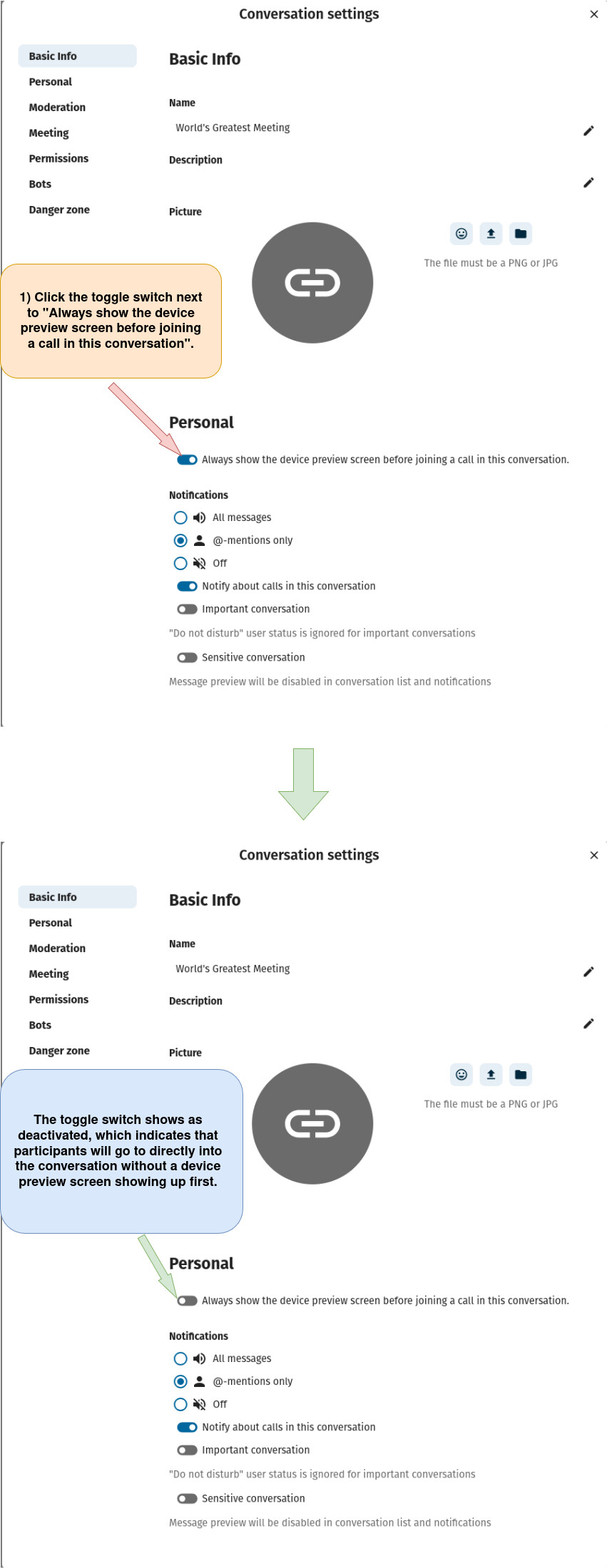
Option 1: Disable “Always show device preview screen before joining a call in this conversation” from the “Conversation settings” window.
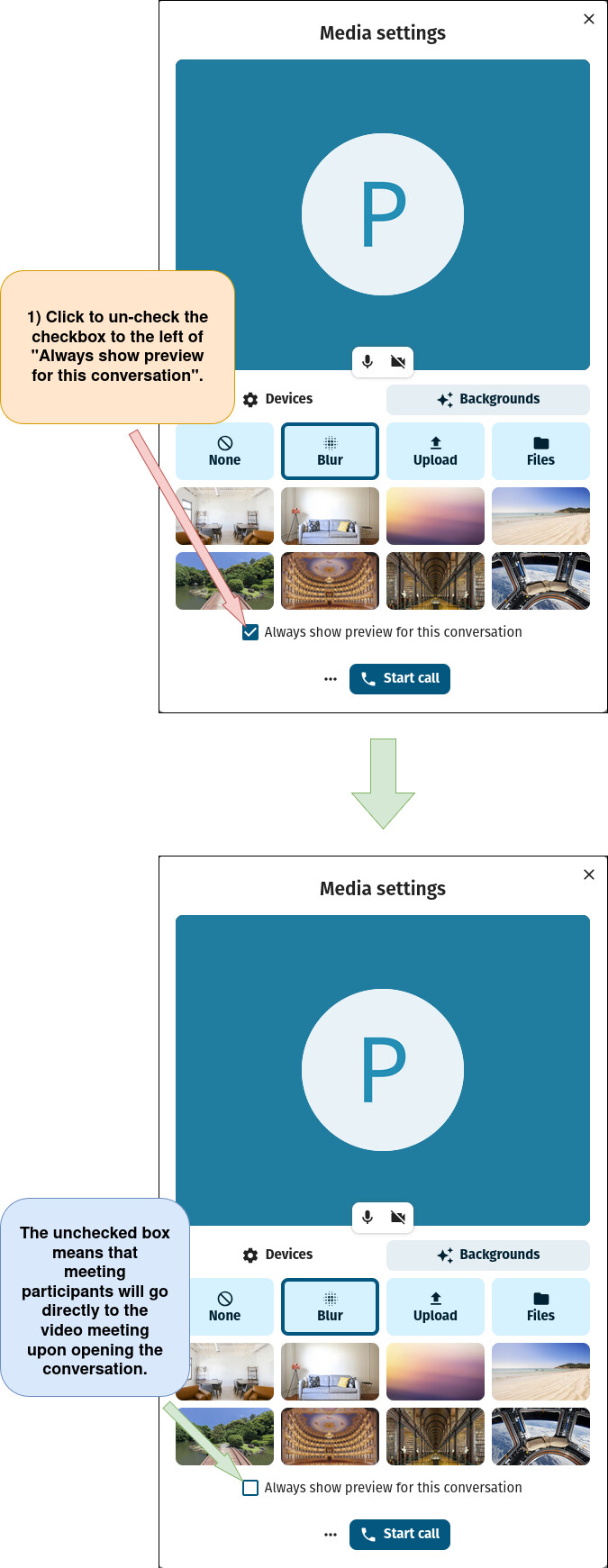
Option 2: Disable “Always show device preview screen before joining a call in this conversation” from the “Media settings” window.
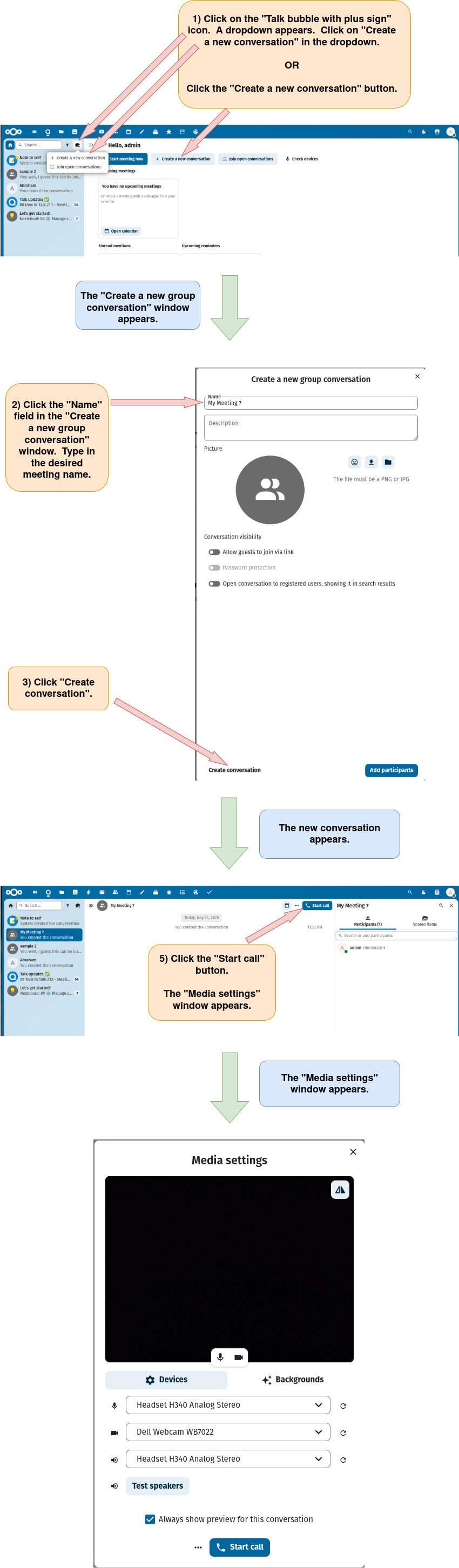
First, open the “Media Settings” Window