Open The "Conversation Settings" Window In Nextcloud Talk

Open The “Conversation Settings” Window In Nextcloud Talk

1) Log in to Nextcloud.

2) Navigate to Nextcloud Talk as described here.

3) Navigate to the “Conversation settings” window.

There are six options for navigating to the “Conversation settings” window

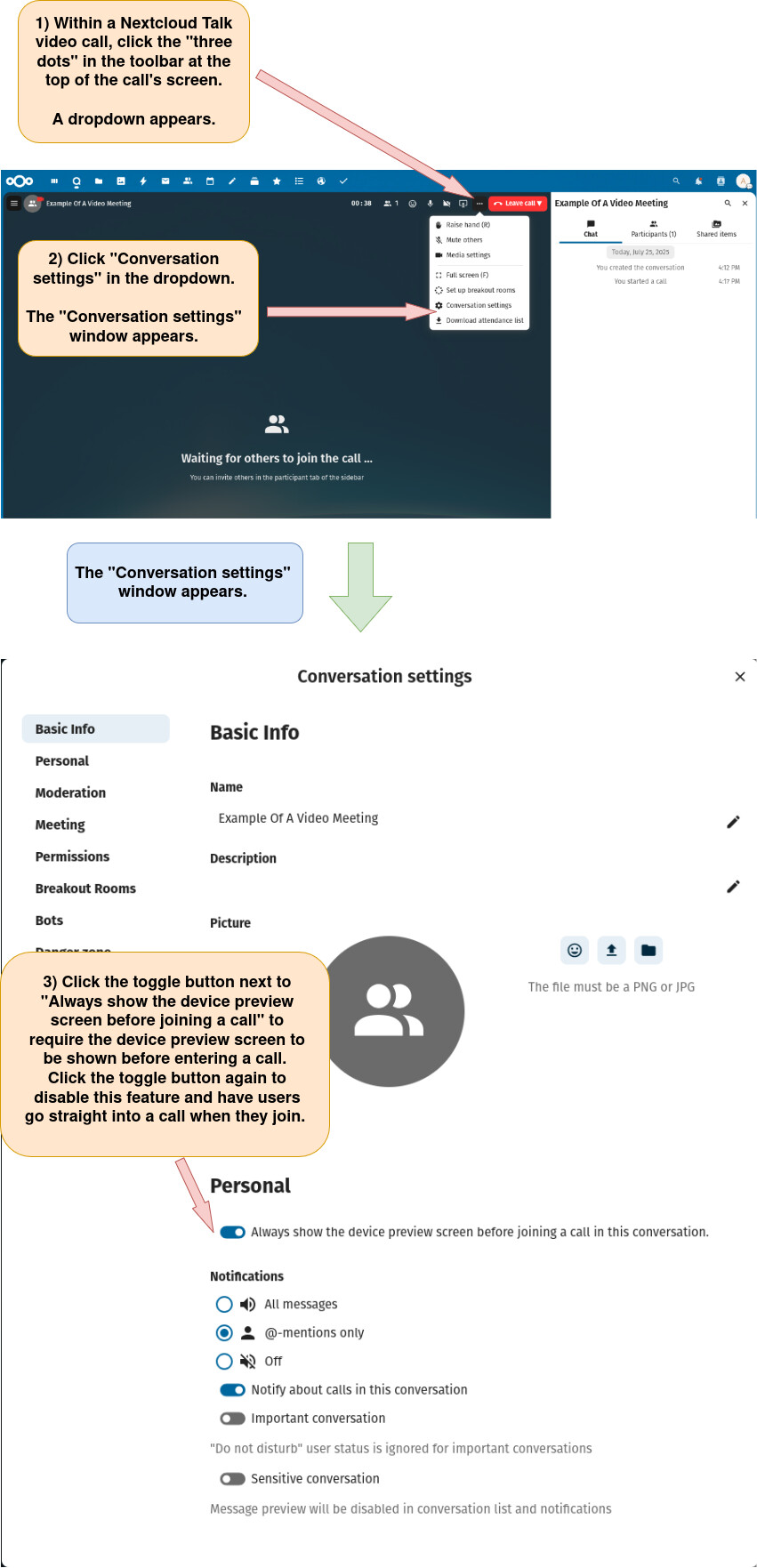
Option 1: Open the “Conversation settings” menu from within a new Nextcloud Talk video meeting.

a) Start a new Nextcloud Talk video meeting as described here

b) Open the “Conversation settings” window as described below.

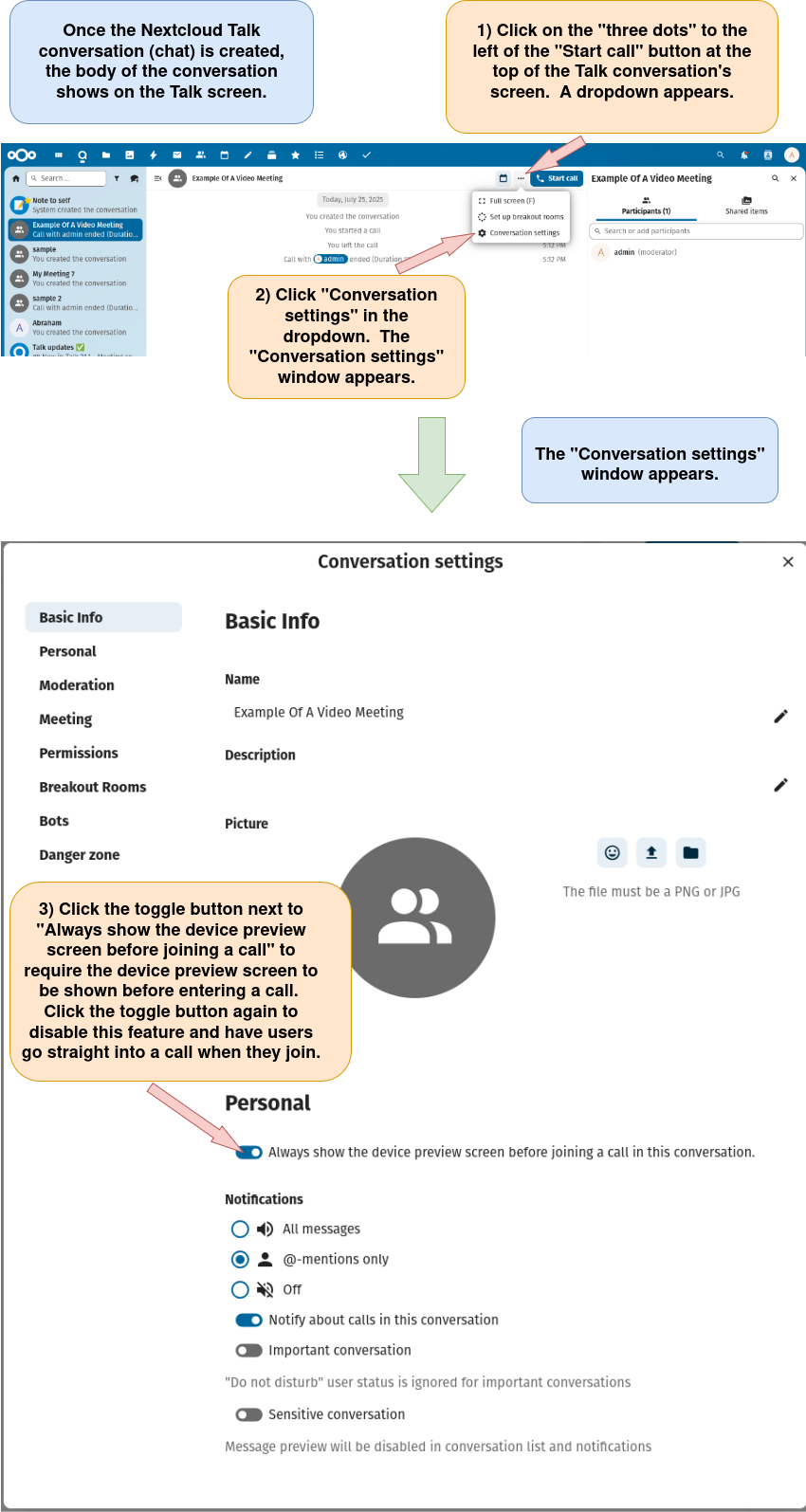
Option 2: Open the “Conversation settings” window from within a new Nextcloud Talk conversation.

a) Start a new Nextcloud conversation (chat) as detailed here.

b) Open the “Conversation settings” window as described below.

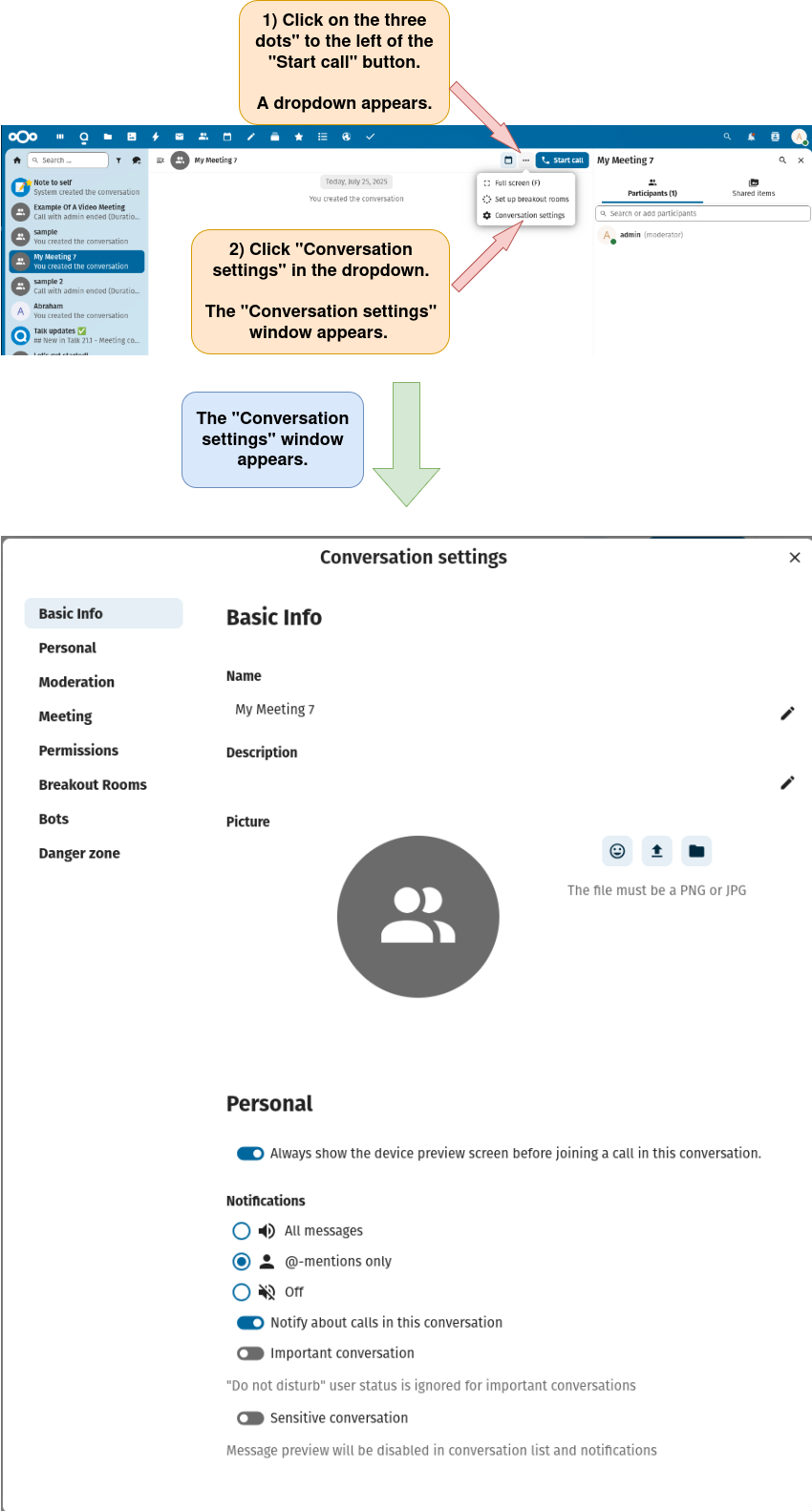
Option 3: Open the “Conversation settings” window from within an existing Nextcloud Talk conversation

a) Find, select, and open an existing Nextcloud Talk conversation as described here.

b) Open the “Conversation settings” window.

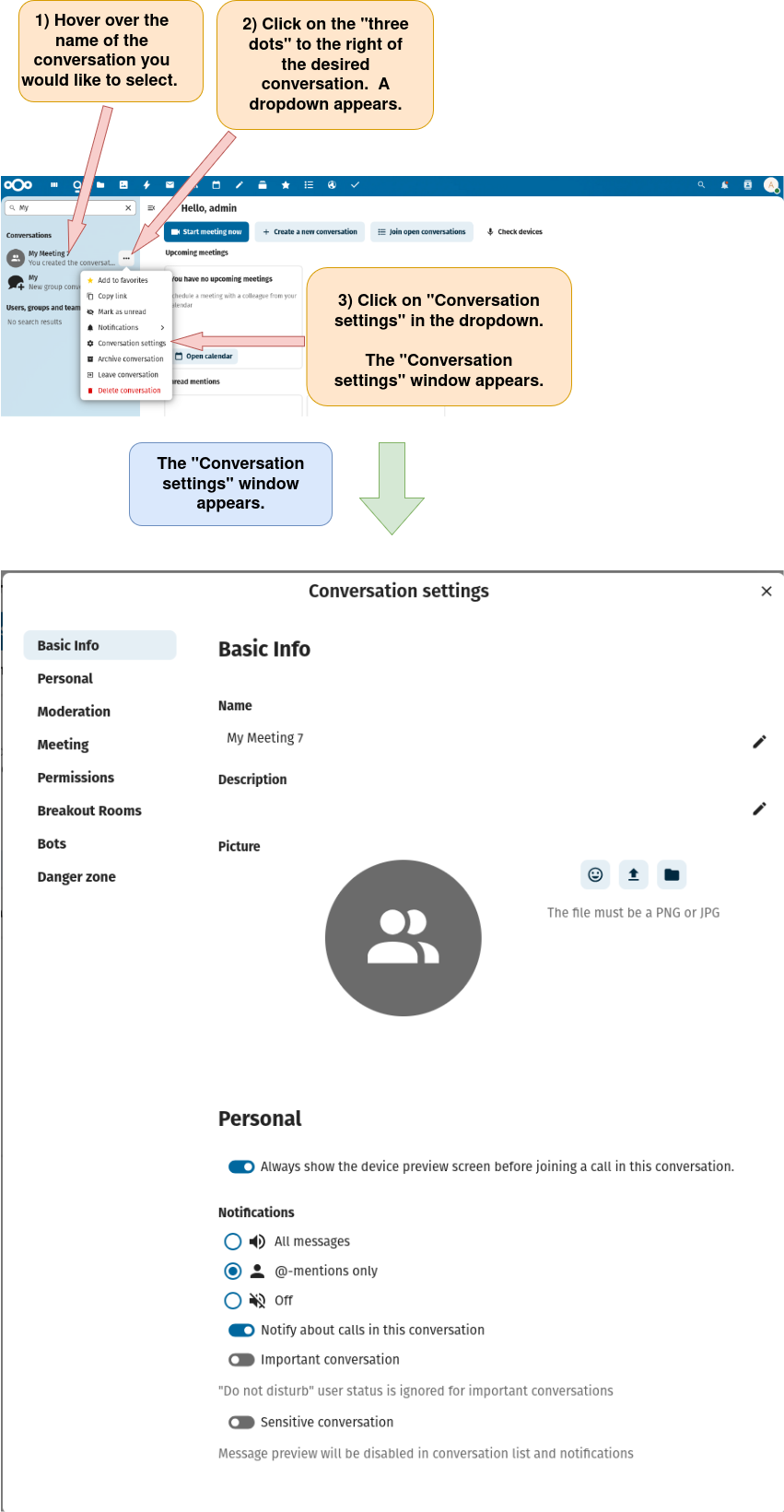
Option 4: Open the “Conversation settings” window by clicking the three dots to the right of an existing Nextcloud Talk conversation in the left sidebar.

a) Find an existing Nextcloud Talk conversation as described here.

b) Open the “Conversation settings” window as described below.

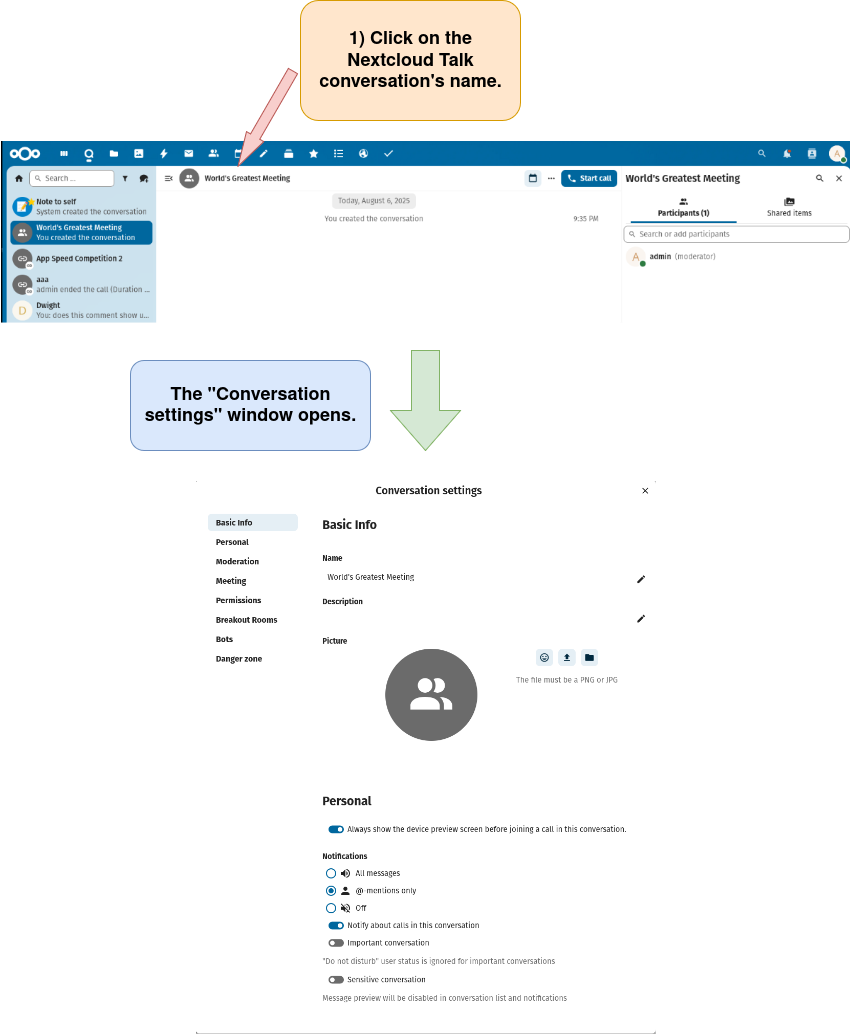
Option 5: Open the “Conversation settings” window by clicking the conversation name in a Nextcloud Talk char conversation.

a) Open an existing Nextcloud Talk chat conversation as described here or open a new Nextcloud Talk chat conversation as described here.

b) Click on the Nextcloud Talk conversation’s name to open the “Conversation settings” window.

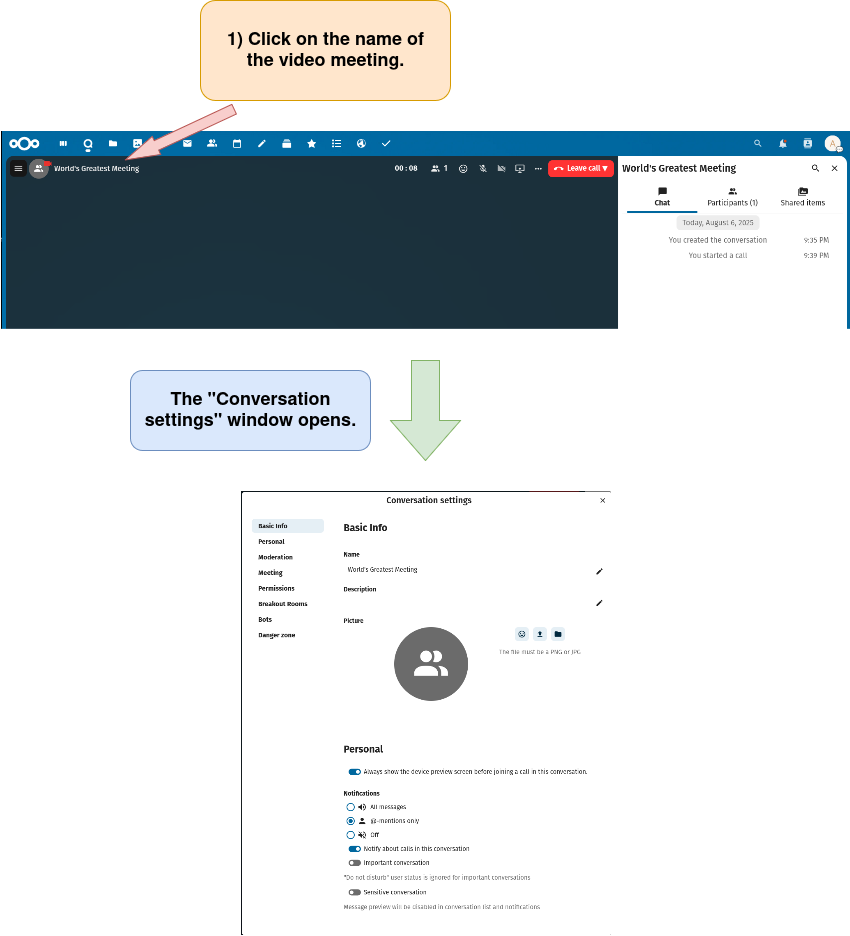
Option 6: Open the “Conversation settings” window by clicking the conversation’s name in a Nextcloud Talk video meeting.

a) Create a new video meeting as described here or open a video meeting from an existing conversation as described here.

b) Click on the Nextcloud Talk video meeting’s name to open the “Conversation settings” window.