How To Log In To Panel For The First Time
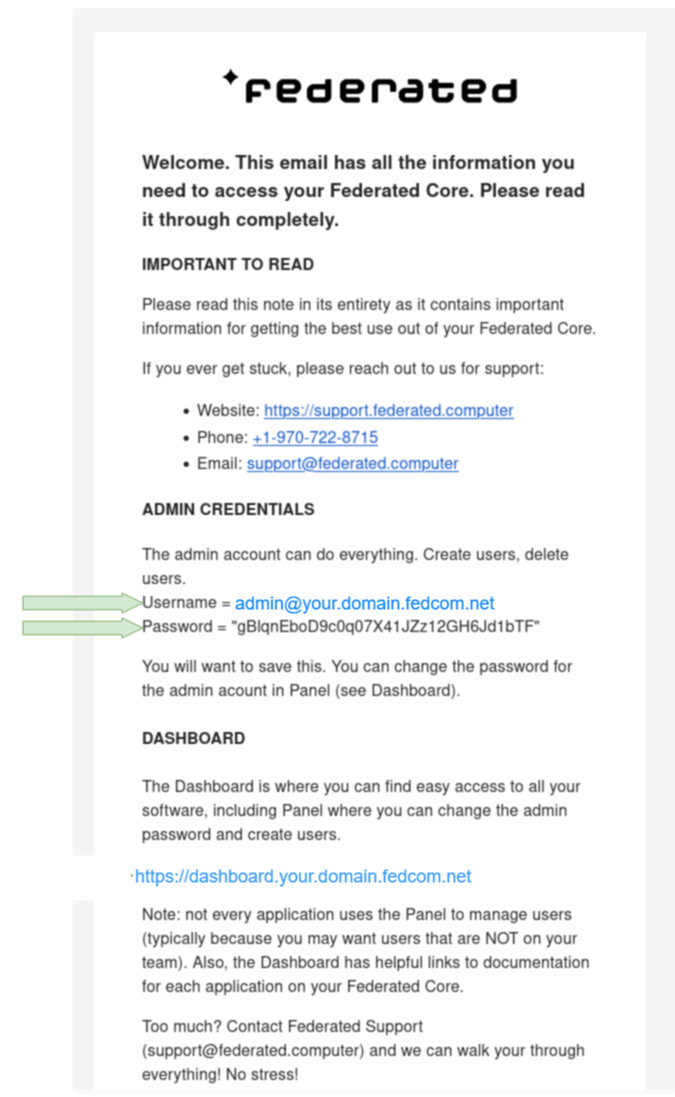
1) Open Your Welcome Email And Find Your Username And Password
You received a welcome email from Federated Computer entitled “Federated Core Credentials and Instructions.” Open this email.
The Welcome Email contains your username and unique password. This is important information that you will use to log in to Panel. The Welcome email will also contain the web address of the Dashboard website for your account.
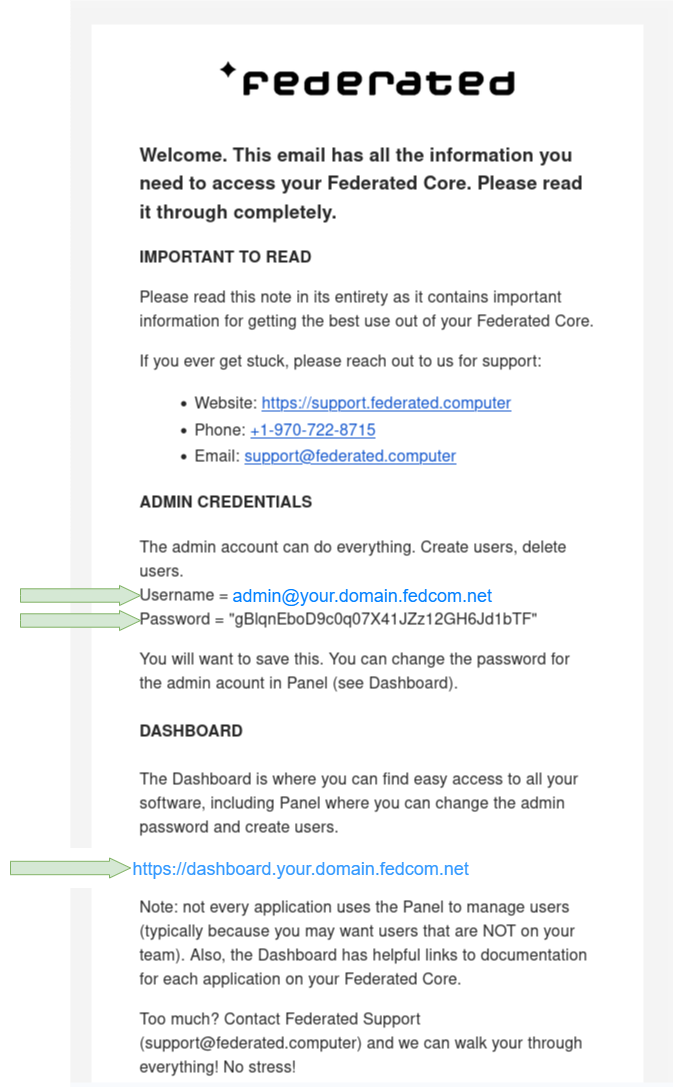
Note: During this process it’s a good idea to keep the welcome email open in a separate tab on your browser so that you can easily reference your username and password when logging in to Panel for the first time.
2) Navigate To Your Federated Core’s Dashboard
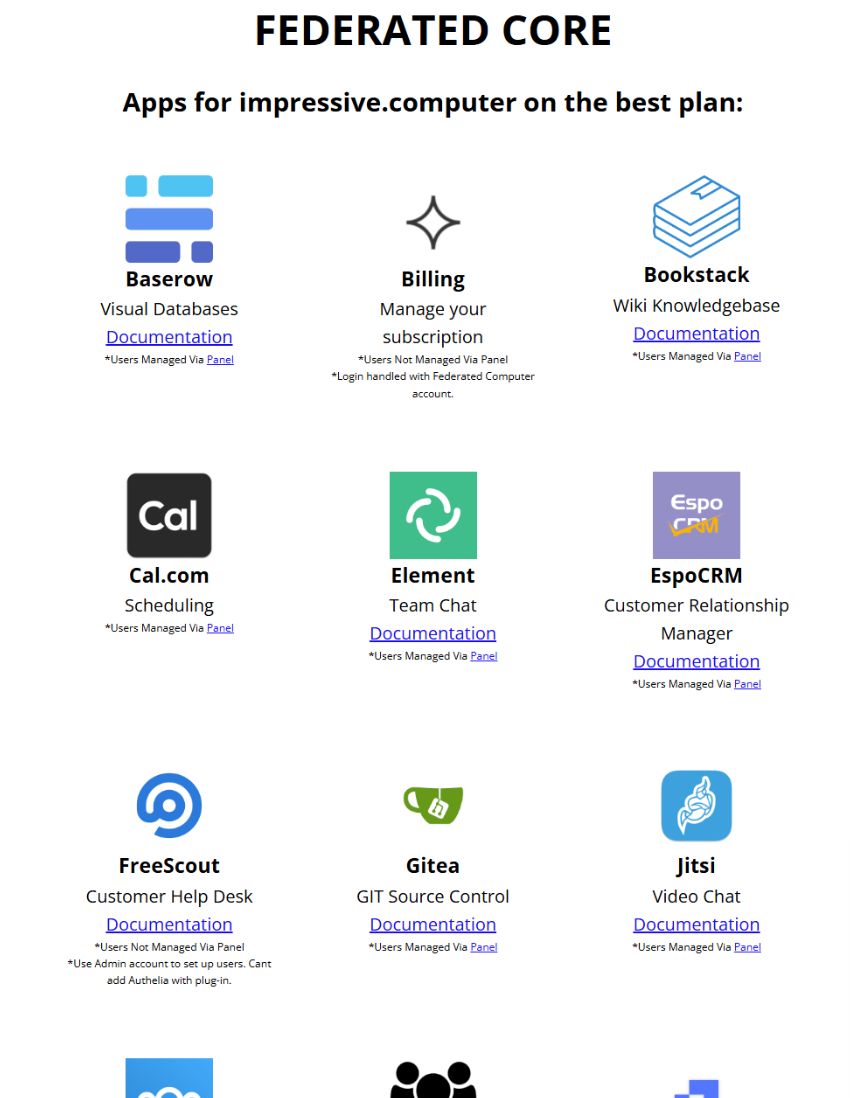
Enter the Dashboard web address from your Welcome Email into your browser. This will take you to your Federated Core’s Dashboard. The Dashboard has icons for all the apps associated with the specific subscription you chose. Your Dashboard will look something like the screenshot below, though it may have a different number or type of icons.
3) Access The Panel App On Your Dashboard
Note: The “Panel” app allows you to add or delete users from your account, change account passwords, and to see how much storage your account has remaining.
Once on your dashboard find the Panel app. You may have to scroll down to find it. Once you have found the icon, click it to go to the login screen for panel.
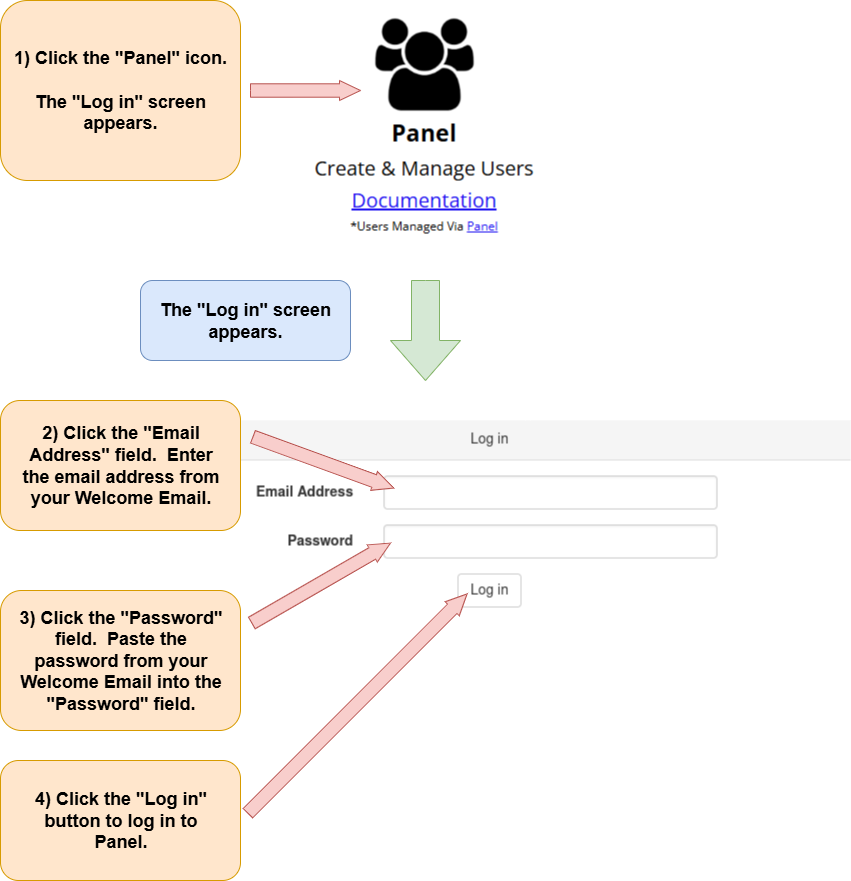
Refer back to your “Federated Core Credentials and Instructions” email. Use the username and password located in the “Admin Credentials” section of this email to log in to Panel.
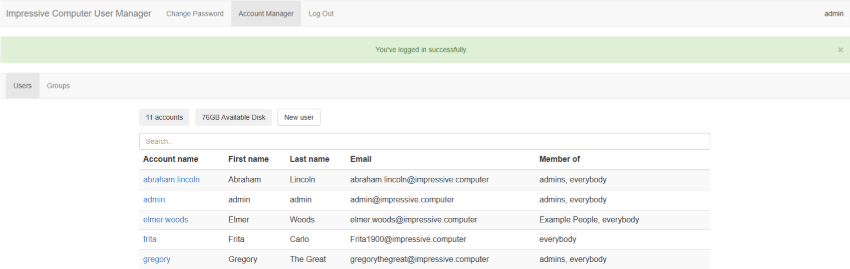
You are now logged in to Panel and should see a screen similar to the one below.