Introduction
Every Federated Core has a private VPN built on Headscale and Tailscale that allows you to communicate over the internet with other members of the VPN and the applications on Federated Core without any snooping. Everything is encrypted.
Headscale or Tailscale?
The new Headscale VPN (aka “tailnet”) is an open-source implementation of the the Tailscale project administration server. Nevertheless, we use Tailscale clients to connect to the VPN.
Unlike the old “VPN” (which we will continue to support), the new “tailnet” is multi-user. Any user in your Panel can use the “tailnet”. You now can choose to authenticate either people (using the accounts in Federated Panel) or devices (see the administrative section below).
Installation
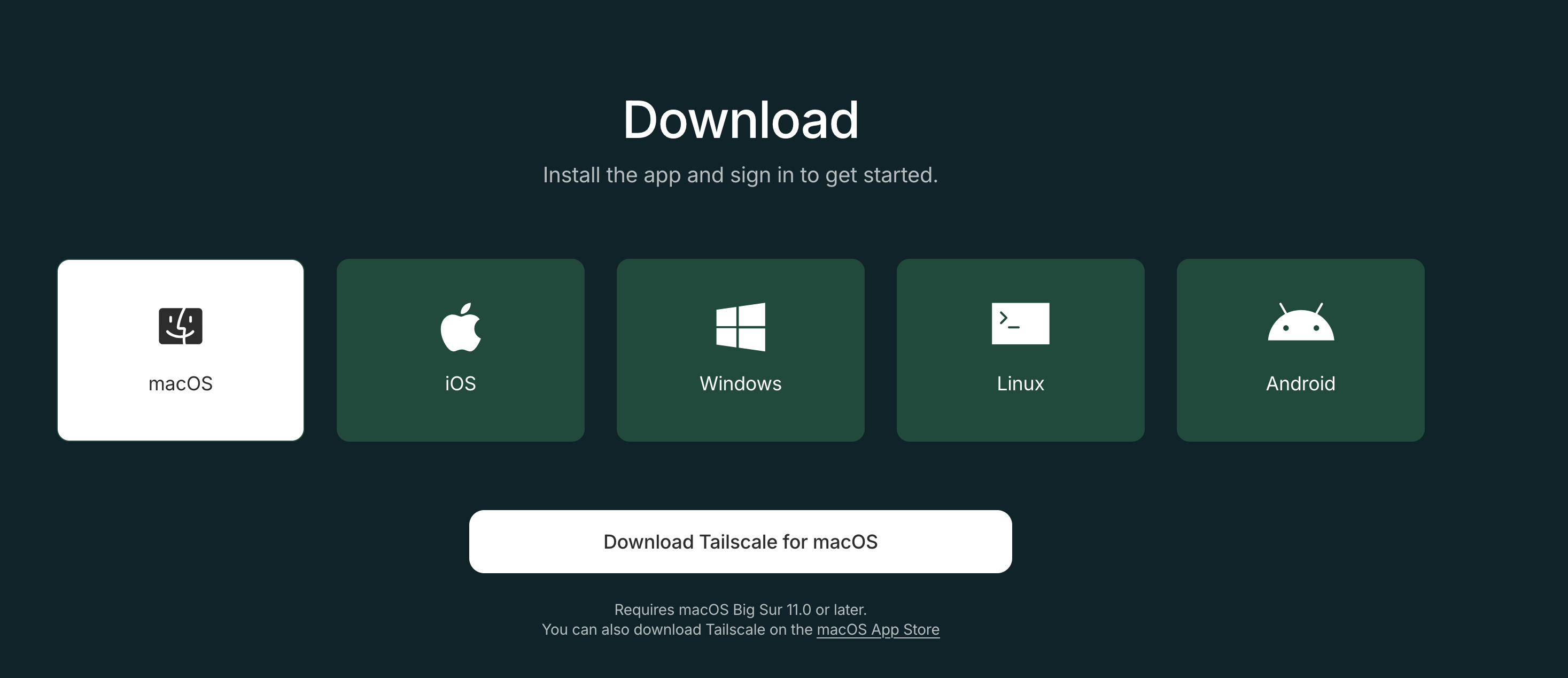
You need to install a tailscale client to use the Headscale VPN. You can download the clients from here: Download | Tailscale.
Windows
Download the official Windows client (Download | Tailscale) and install it. Open a command prompt or powershell and use Tailscale’s login command to connect with your Headscale instance.
tailscale login --accept-routes --login-server https://headscale.yourdomain.com (where “yourdomain.com” is replaced with your domain name).
You will be given a URL to paste into your browser. There you will be taken to your Core’s Authelia log-in page where you can put in your credentials. Now you’re connected to the Headscale VPN. Note: if you are logged into your Federated Core via Authelia in the browser, you may not need to enter your credentials again.
Macintosh
Choose one of the (3) ways to install Tailscale on MacOS: Three ways to run Tailscale on macOS · Tailscale Docs
Command Line: To configure the Headscale URL, use Tailscale’s login command to connect with your Headscale instance:
sudo tailscale login --accept-routes --login-server https://headscale.yourdomain.com (where “yourdomain.com” is replaced with your domain name).
GUI:
- Option+Click in the Tailscale icon in the menu and hover over the Debug menu
- Update “Custom Login Server”, select “Add Account…”
- Enter the URL of your Headscale instance (e.g. https://headscale.domain.com where domain.com is your domain) and click “Add Account”
- Follow the login procedure in the browser
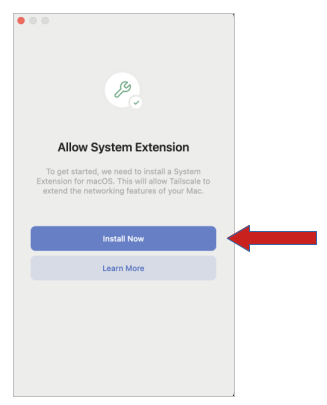
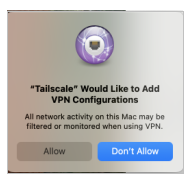
When you run the Tailscale application, you’ll need to allow it to function. Click “Install Now”.
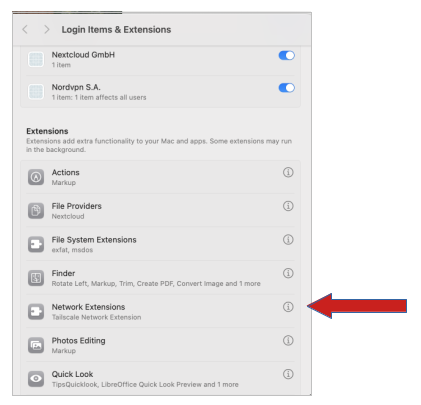
You’ll be taken to the “Login Items & Extensions” section. Click on the “I” next to the “Network Extensions” section.
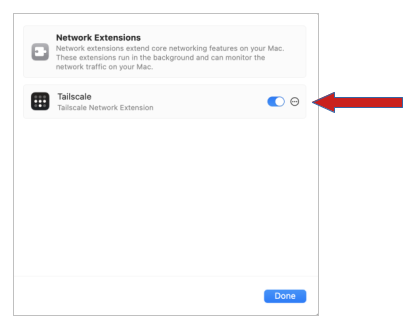
Enable the Tailscale Network Extension.
Click “Allow”…
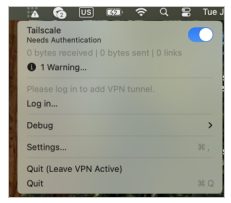
Now “Option-Click” (hold the option key down while clicking) on the Tailscale menu in the menu bar. Click “Settings”.
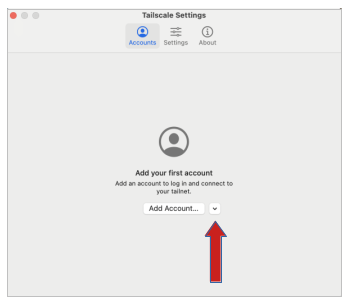
Click the “caret” menu…
Now you can add your Headscale (https://headscale.domain.com where domain.com is your domain).
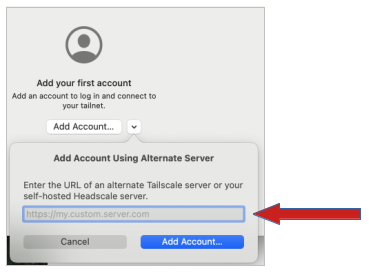
Click “Add Account” and you’ll be asked to authenticate to your Federated Core.
Linux
The Tailscale application is installed from the command-line. Use the following command:
curl -fsSL https://tailscale.com/install.sh | sh
After the installation is finished, run the command to connect:
sudo tailscale login --accept-routes --login-server https://headscale.yourdomain.com (where “yourdomain.com” is replaced with your domain name).
You will be given a URL to paste into your browser. There you will be taken to your Core’s Authelia log-in page where you can put in your credentials. Now you’re connected to the Headscale VPN. Note: if you are logged into your Federated Core via Authelia in the browser, you may not need to enter your credentials again.
You can use the Trayscale application (install it from your app repository of choice) to manage your Headscale connection.
iOS
Install the Tailscale app from the App store. When you open the app, click on the “head” to customize.
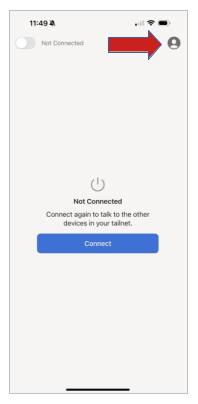
Click on the “Account” icon like looks like a head. Then click on log-in…
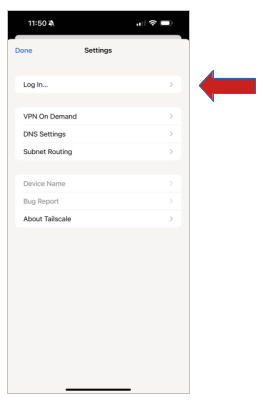
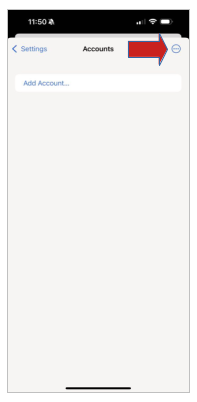
Then do NOT click on ADD ACCOUNT. Rather, click on the three dots in the upper right…
That will give you a drop down menu. Click on the “Use a custom coordination server” option.
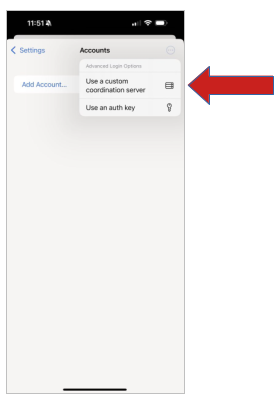
Now you can enter in the URL for your Headscale server. That is “https://headscale.domain.com” where “domain.com” is your domain name.
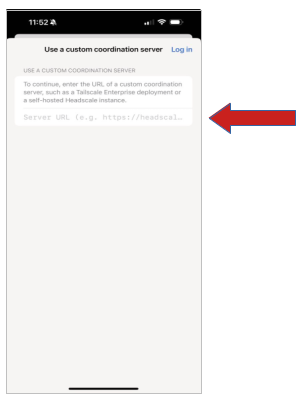
You may need to swipe away the screen once your connect.
Android
Install the official Tailscale Android client from the Google Play Store (https://play.google.com/store/apps/details?id=com.tailscale.ipn) or F-Droid (Tailscale | F-Droid - Free and Open Source Android App Repository).
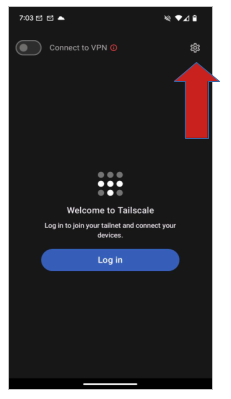
- Open the app and select the settings menu in the upper-right corner
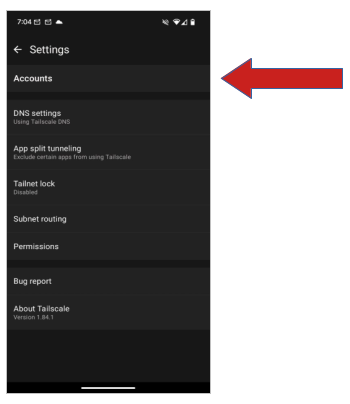
- Tap on “Accounts”
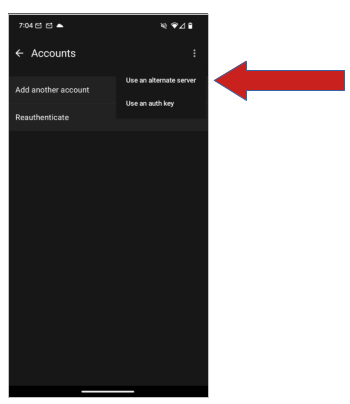
- In the three dot menu in the upper-right corner select “Use an alternate server”
- Enter the server URL (e.g. https://headscale.domain.com where domain.com is your domain) and follow the instructions
Open the Android app and tap on the gear for settings:
Then click on “Accounts”…
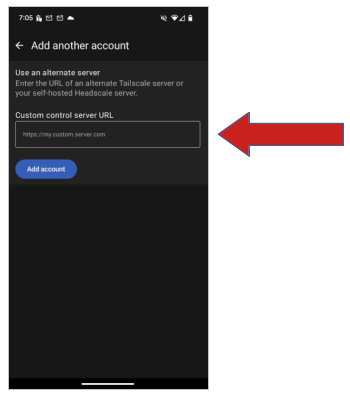
Then click on the three dots…and select “Use an alternate server”…
Fill in the “Custom control server URL” with “https://headscale.domain.com” where “domain.com” is your domain.
Understanding the Exit Node Concept
An “exit node” is the machine from which you node/client “exits” to the internet. By default, when you connect to the Headscale VPN your device “exits” using itself as the “exit node” and the IP address presented to is the one given to your device before joining the Headscale VPN. However, you can also choose to “exit” from your Federated Core. If your Federated Core is in the United States, you will “exit” to the internet from the United States. Federated Cores in the EU “exit” from the EU. Those in the Far East “exit” from the Far East.
However, if you want other options for your team, you can, for example, set up a virtual machine in, to make up an example, in France, install the Tailscale software on the virtual machine in Iceland, and set up that node as an “exit node”. Thereafter, users of your Core would be able to “exit” in France and thus appear to all the internet as devices originating in France (maybe in order to watch French TV, etc). In other words, you can set up a workable VPN for your Core that is entirely private, but accomplishes some of the features/functions of the non-private “public” VPNs. Choosing an exit node is done using the Tailscale client used to connect to your Headscale VPN.
Other Uses for the Headscale VPN
You can connect many different devices to your private Headscale VPN. Since there is no centralized owner of the VPN besides you, there are many ways to use the VPN productively. You can use the VPN to connect your team to development servers at AWS, Azure or Google Cloud, etc. You can connect your team so that they can print to printers on home networks. Much of the documentation for Tailscale works for your Headscale VPN. Explore. Tell us what your find. We hope you find many fruitful uses for your Headscale VPN.
Headscale Administration
There are many things you can do with the Headscale Administration app. You get to the Headscale Administration app at: https://headscale.domain.com/admin where “domain.com” is your domain.
–Federated Computer Team