Delete An Account In Panel
1) Use your admin account to log in to Panel
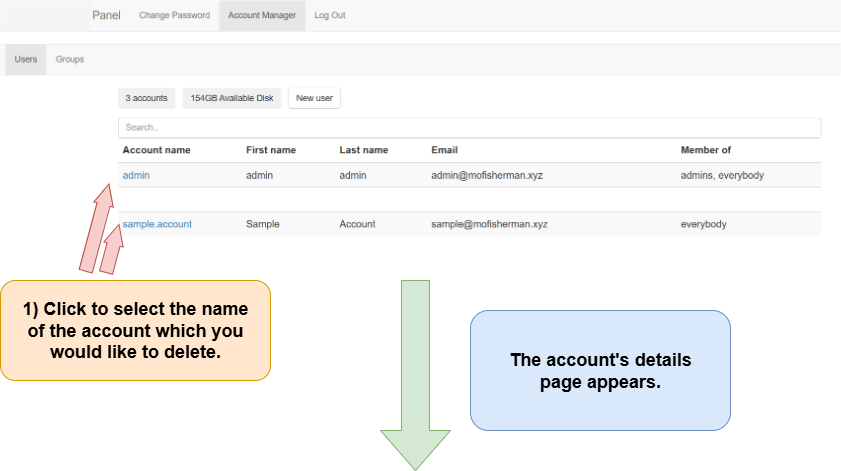
2) Select the account you would like to delete.
When you log in to Panel, you begin on the “Users” tab. The users under your main account are listed here.
Click on the name of the account you would like to delete. The account name appears as a blue hyperlink as below.
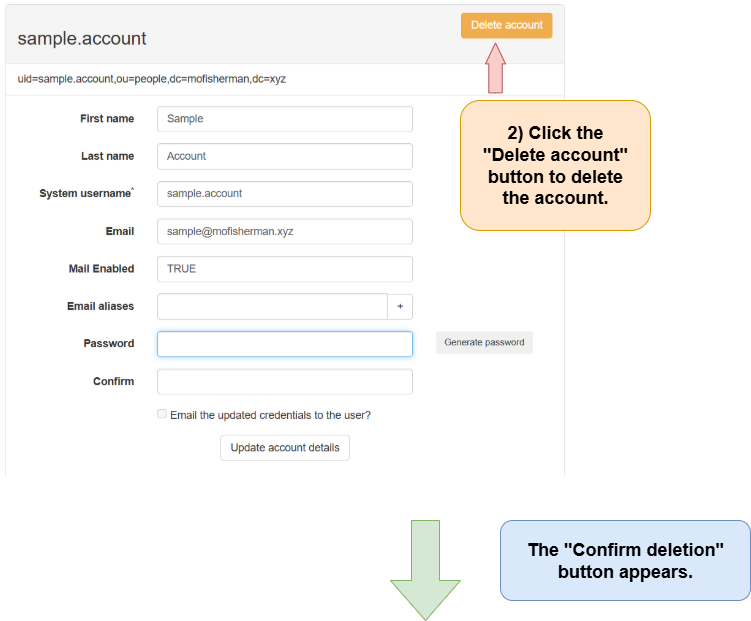
3) Delete the account
In the account’s details page, note the “Delete account” button at the upper right. Click on the “Delete account” button.
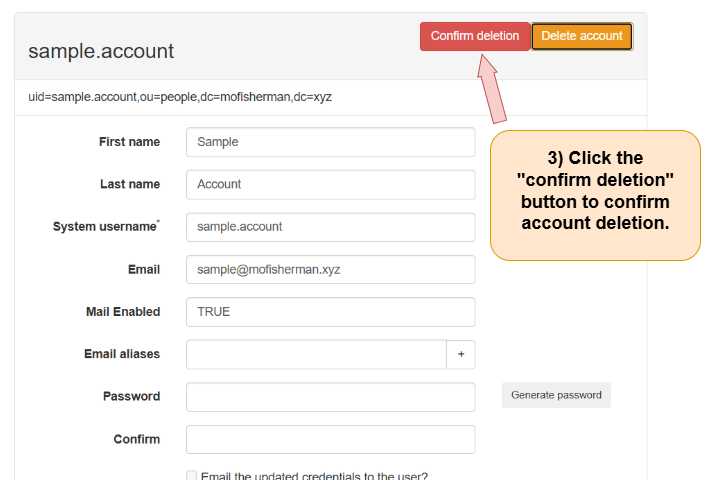
When you click the “Delete account” button the “Confirm deletion” button appears. Click the “Confirm deletion” button to delete the account. Make sure that the account on this page is the account you wish to delete before clicking the “Confirm deletion” button.
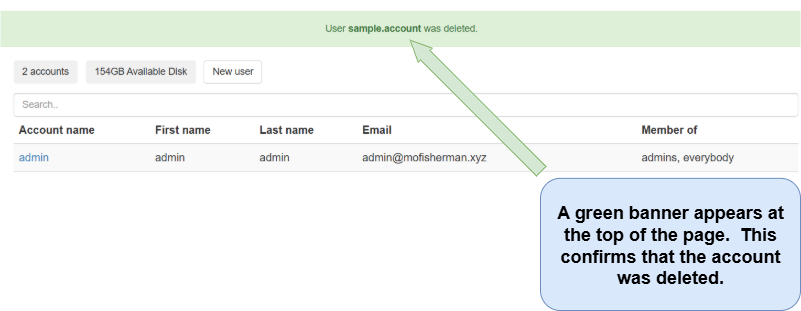
After clicking the “Confirm deletion” button you are redirected to the Users tab on Panel’s main page. A green “User … was deleted” banner appears near the top of the page, confirming that the account was deleted. Note that the deleted account no longer appears in the list of accounts.