Configuring A Nextcloud Talk Video Meeting Using The “Media Settings” Window, Comprehensive Guide
Configure The Microphone, Camera, and Speaker Used On A Video Call
1) Log in to Nextcloud.
2) Navigate to Nextcloud Talk as described here.
3) Open the “Media Settings” Window
There are two different ways to open the “Media Settings” window.
Option 1: Open the “Media Settings” window directly from the main Nextcloud Talk page.
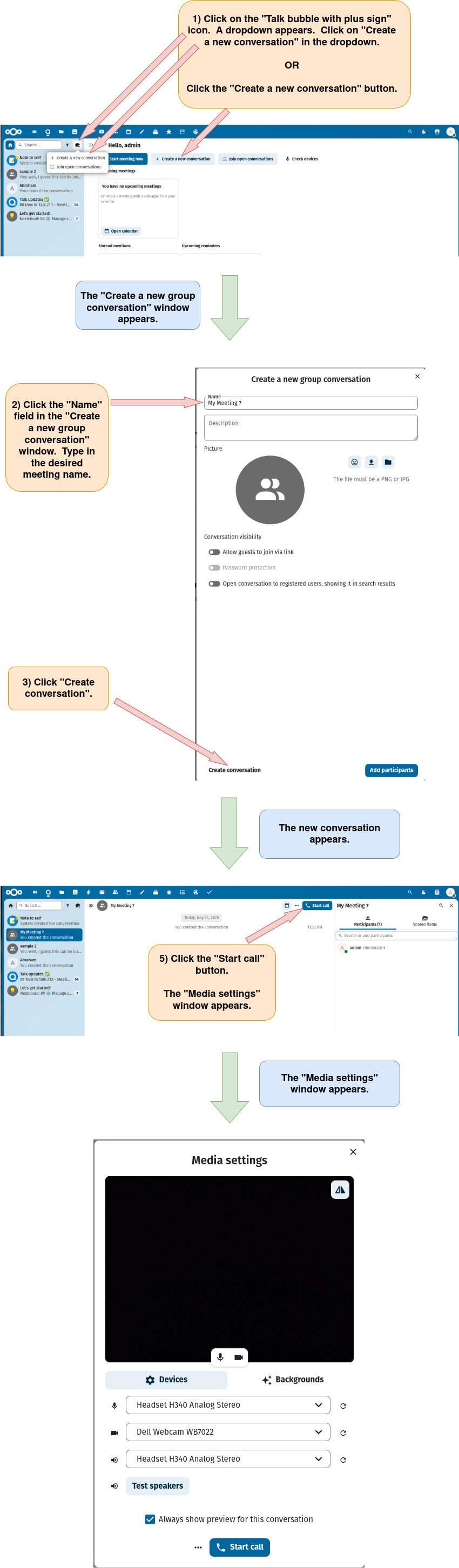
Option 2: Open the “Media Settings” window after first creating a new Nextcloud conversation (chat).
4) Select and assign the desired media devices.
Configure The Background To Be Used On A Nextcloud Talk Video Call
1) Log in to Nextcloud.
2) Navigate to Nextcloud Talk as described here.
3) Open the “Media Settings” Window
There are two different ways to open the “Media Settings” window.
Option 1: Open the “Media Settings” window directly from the main Nextcloud Talk page.
Option 2: Open the “Media Settings” window after first creating a new Nextcloud conversation (chat).
4) Choose the background to be used for the Nextcloud Talk video call.
Start A Nextcloud Talk Video Meeting Without Notifying Participants
1) Log in to Nextcloud.
2) Navigate to Nexcloud Talk as described here.
3) Open “Media settings” window.
There are two different ways to open the “Media Settings” window.
Option 1: Open the “Media Settings” window directly from the main Nextcloud Talk page.
Option 2: Open the “Media Settings” window after first creating a new Nextcloud conversation (chat).
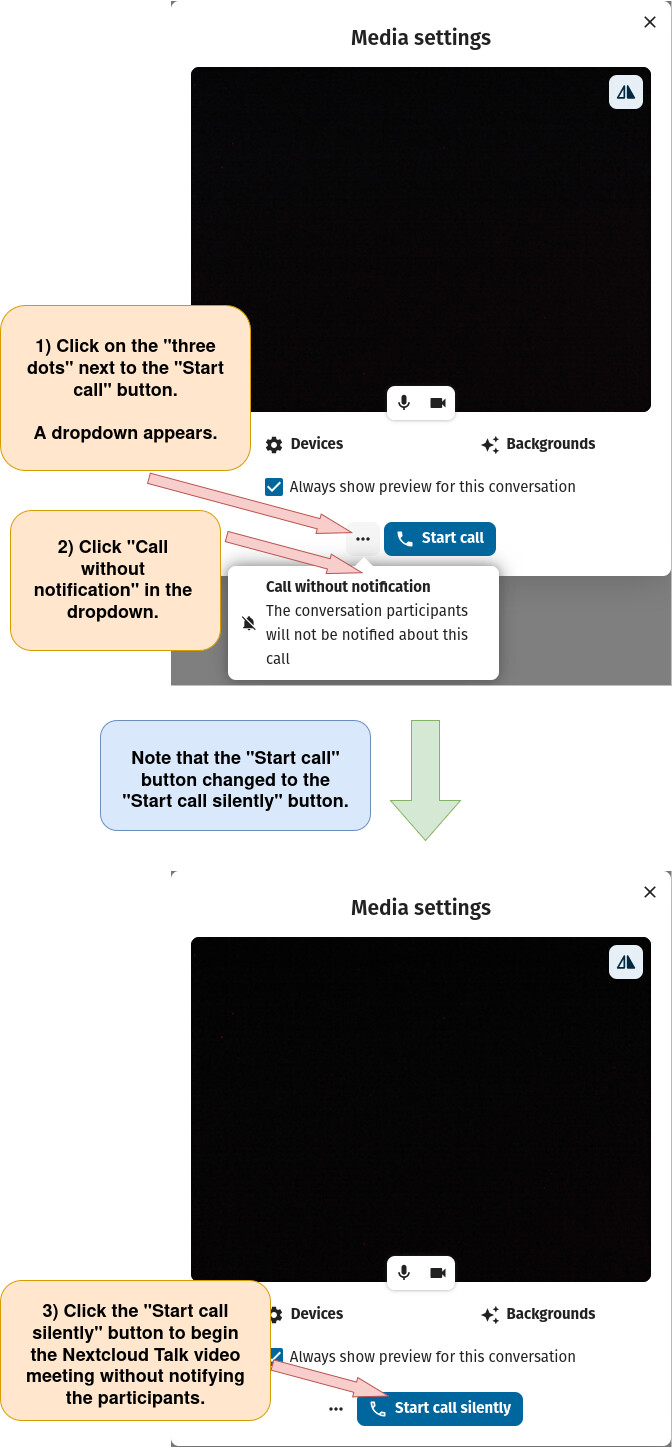
4) Start the Nextcloud Talk video meeting without notifying the participants.
Do Not Require The “Media Settings” Preview Screen To Appear Before Entry To A Nexcloud Talk Video Meeting
1) Log in to Nextcloud.
2) Navigate to Nextcloud Talk as described here.
3) Open the “Conversation settings” window as described here.
4) There are two options for disabling requiring showing a conversation preview before joining a video meeting.
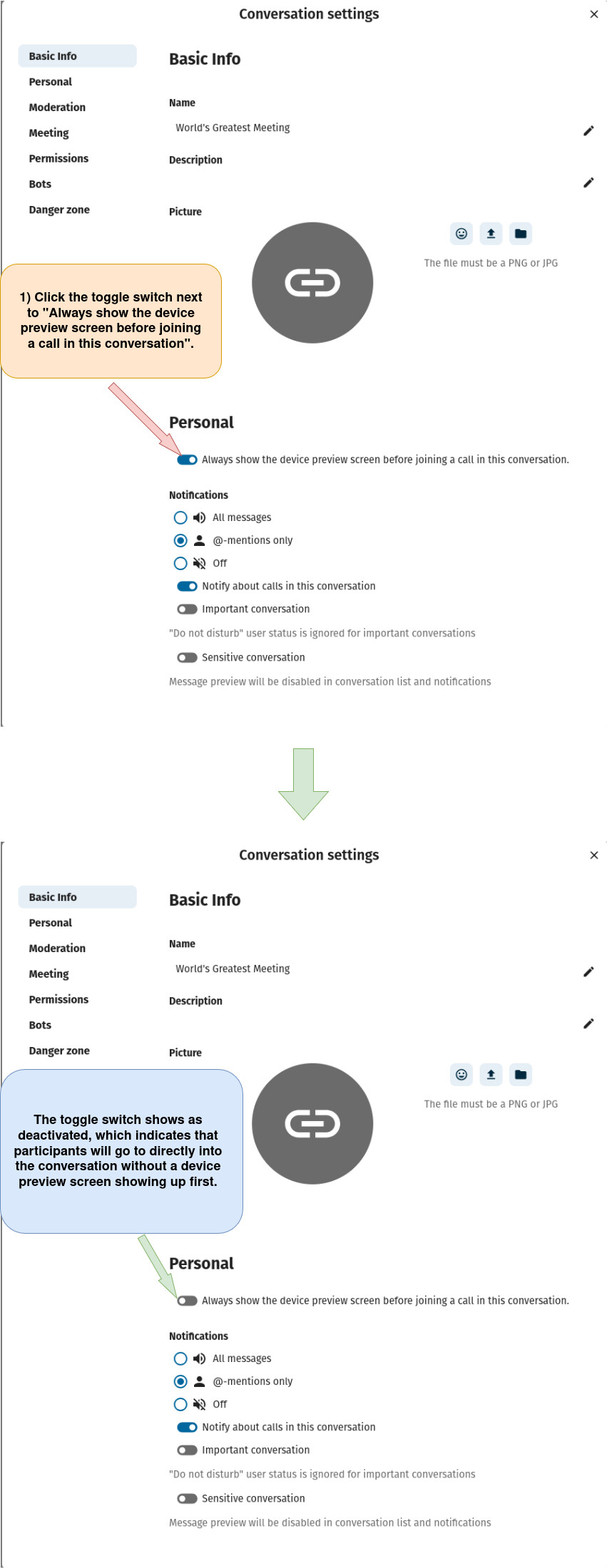
Option 1: Disable “Always show device preview screen before joining a call in this conversation” from the “Conversation settings” window.
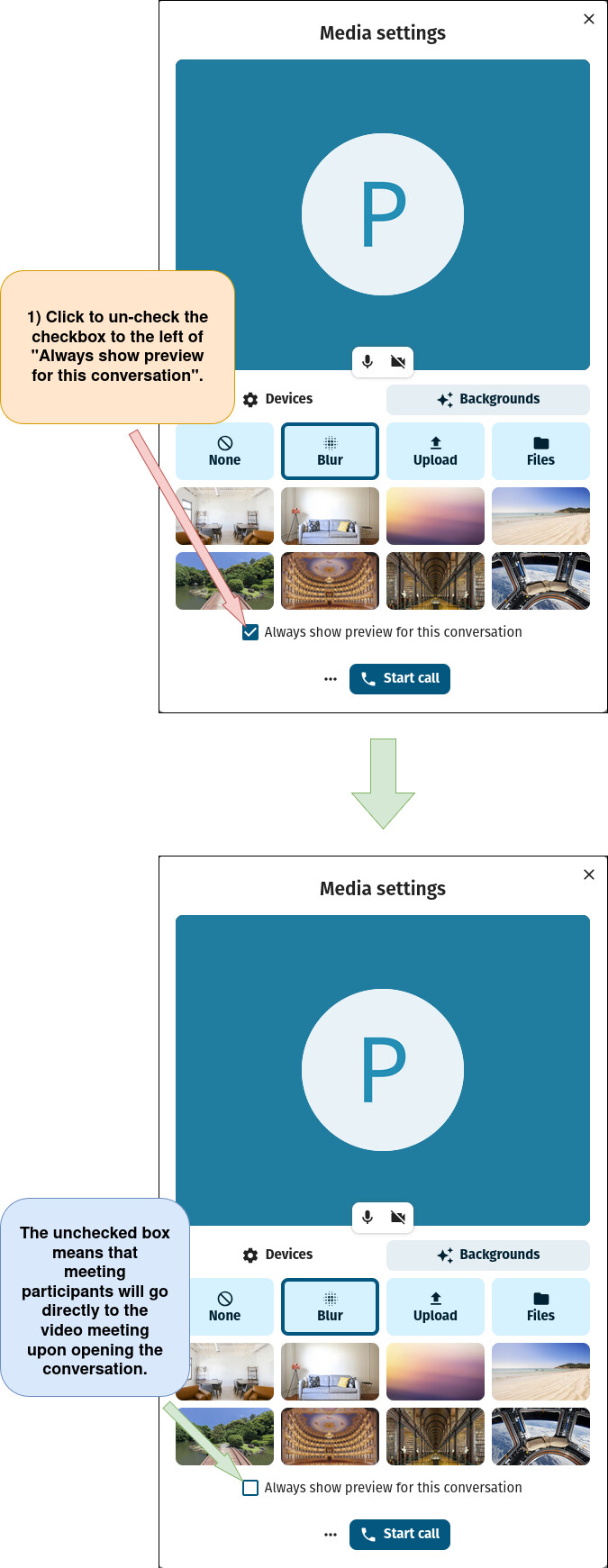
Option 2: Disable “Always show device preview screen before joining a call in this conversation” from the “Media settings” window.
First, open the “Media Settings” Window
There are two different ways to open the “Media Settings” window.
Option a: Open the “Media Settings” window directly from the main Nextcloud Talk page.
Option b: Open the “Media Settings” window after first creating a new Nextcloud conversation (chat).
Second, uncheck the checkbox next to “Always show preview for this conversation”.
Set A Nextcloud Talk Video Meeting To Notify Participants When The Video Meeting Begins
1) Log in to Nextcloud.
2) Navigate to Nexcloud Talk as described here.
3) Open “Media settings” window.
There are two different ways to open the “Media Settings” window.
Option 1: Open the “Media Settings” window directly from the main Nextcloud Talk page.
Option 2: Open the “Media Settings” window after first creating a new Nextcloud conversation (chat).
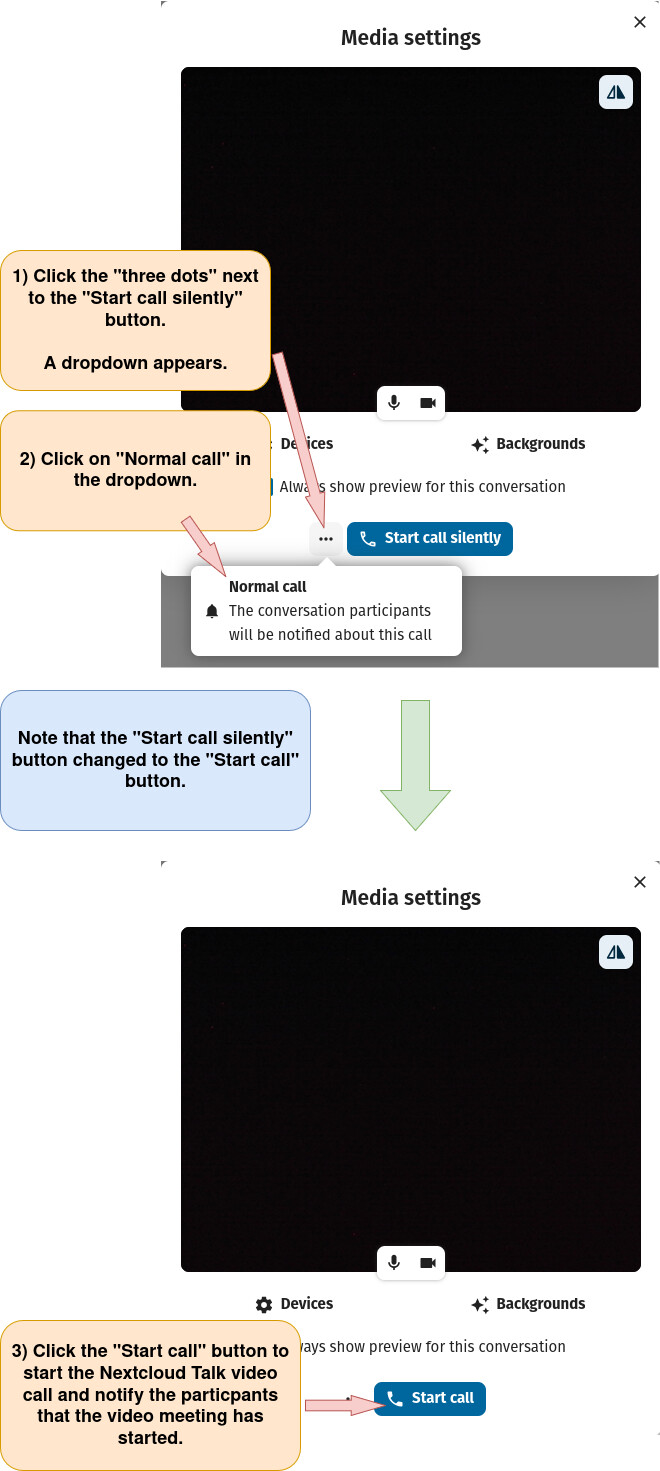
4) Change settings so that participants will be notified when the Nextcloud Talk video meeting begins.
Reverse The Camera Before Entering A Nextcloud Talk Video Meeting
1) Log in to Nextcloud.
2) Navigate to Nextcloud Talk as described here.
3) Open the “Media Settings” Window
There are two different ways to open the “Media Settings” window.
Option 1: Open the “Media Settings” window directly from the main Nextcloud Talk page.
Option 2: Open the “Media Settings” window after first creating a new Nextcloud conversation (chat).
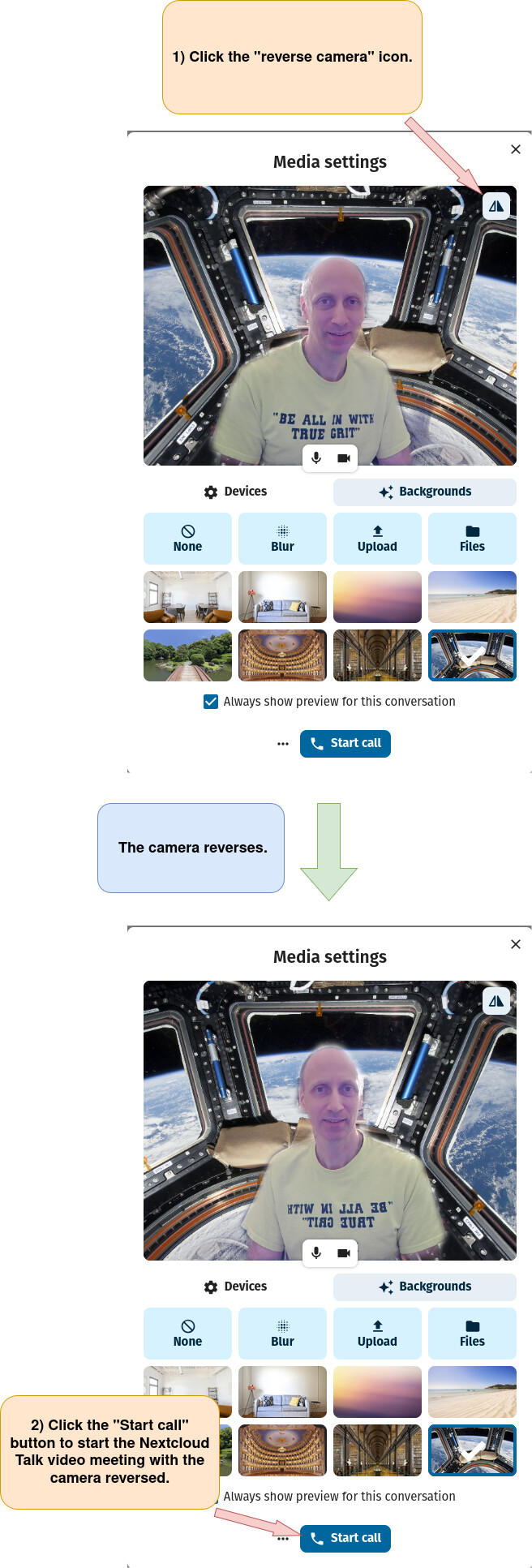
4) Reverse the camera.
Turn Off Camera Before Entering Nextcloud Talk Video Meeting
1) Log in to Nextcloud.
2) Navigate to Nextcloud Talk as described here.
3) Open the “Media Settings” Window
There are two different ways to open the “Media Settings” window.
Option 1: Open the “Media Settings” window directly from the main Nextcloud Talk page.
Option 2: Open the “Media Settings” window after first creating a new Nextcloud conversation (chat).
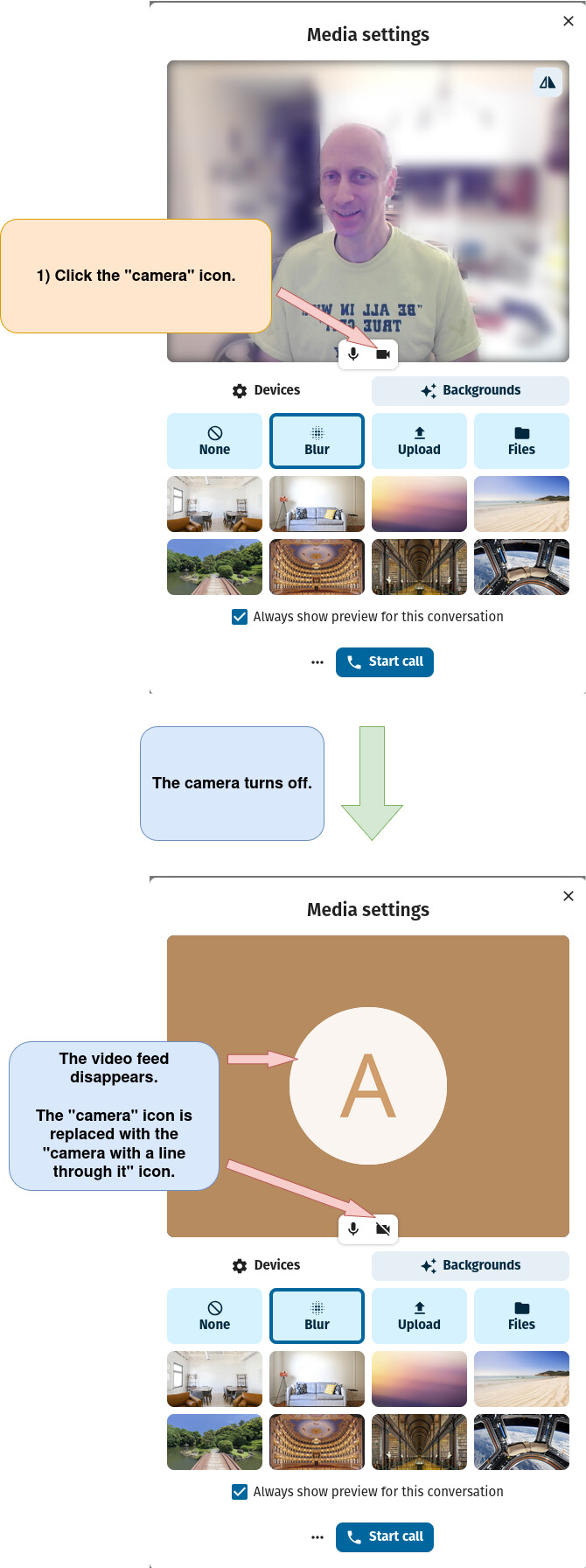
4) Turn off the camera.
Turn On Camera Before Entering Nextcloud Talk Video Meeting
1) Log in to Nextcloud.
2) Navigate to Nextcloud Talk as described here.
3) Open the “Media Settings” Window
There are two different ways to open the “Media Settings” window.
Option 1: Open the “Media Settings” window directly from the main Nextcloud Talk page.
Option 2: Open the “Media Settings” window after first creating a new Nextcloud conversation (chat).
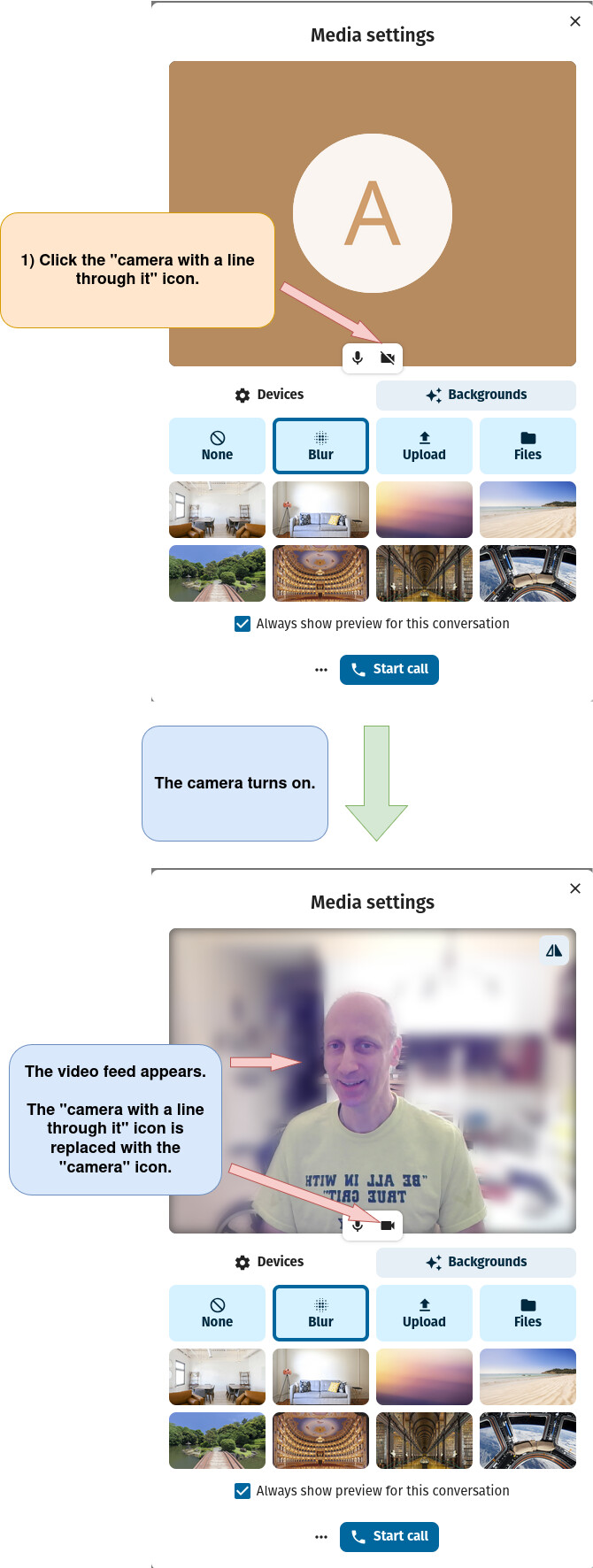
4) Turn on the camera.
Turn On Microphone Before Entering Nextcloud Talk Video Meeting
1) Log in to Nextcloud.
2) Navigate to Nextcloud Talk as described here.
3) Open the “Media Settings” Window
There are two different ways to open the “Media Settings” window.
Option 1: Open the “Media Settings” window directly from the main Nextcloud Talk page.
Option 2: Open the “Media Settings” window after first creating a new Nextcloud conversation (chat).
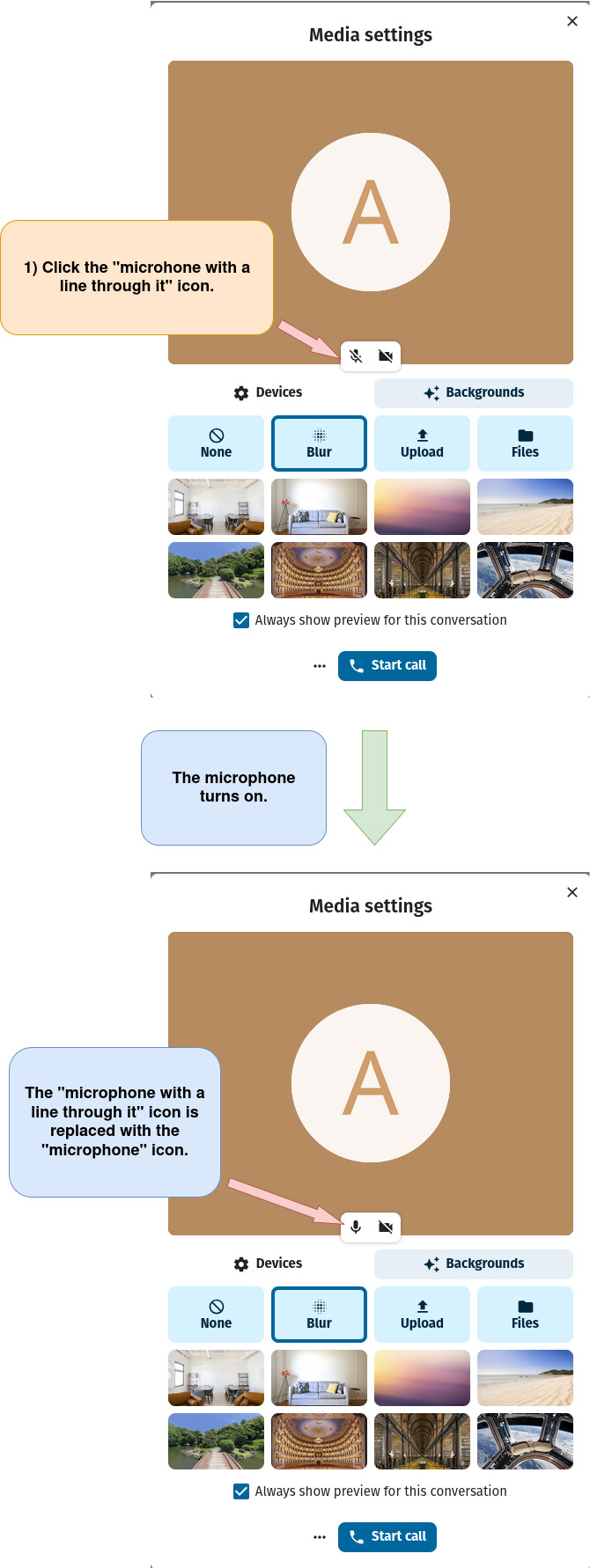
4) Turn on microphone.
Turn Off Microphone Before Entering Nextcloud Talk Video Meeting
1) Log in to Nextcloud.
2) Navigate to Nextcloud Talk as described here.
3) Open the “Media Settings” Window
There are two different ways to open the “Media Settings” window.
Option 1: Open the “Media Settings” window directly from the main Nextcloud Talk page.
Option 2: Open the “Media Settings” window after first creating a new Nextcloud conversation (chat).
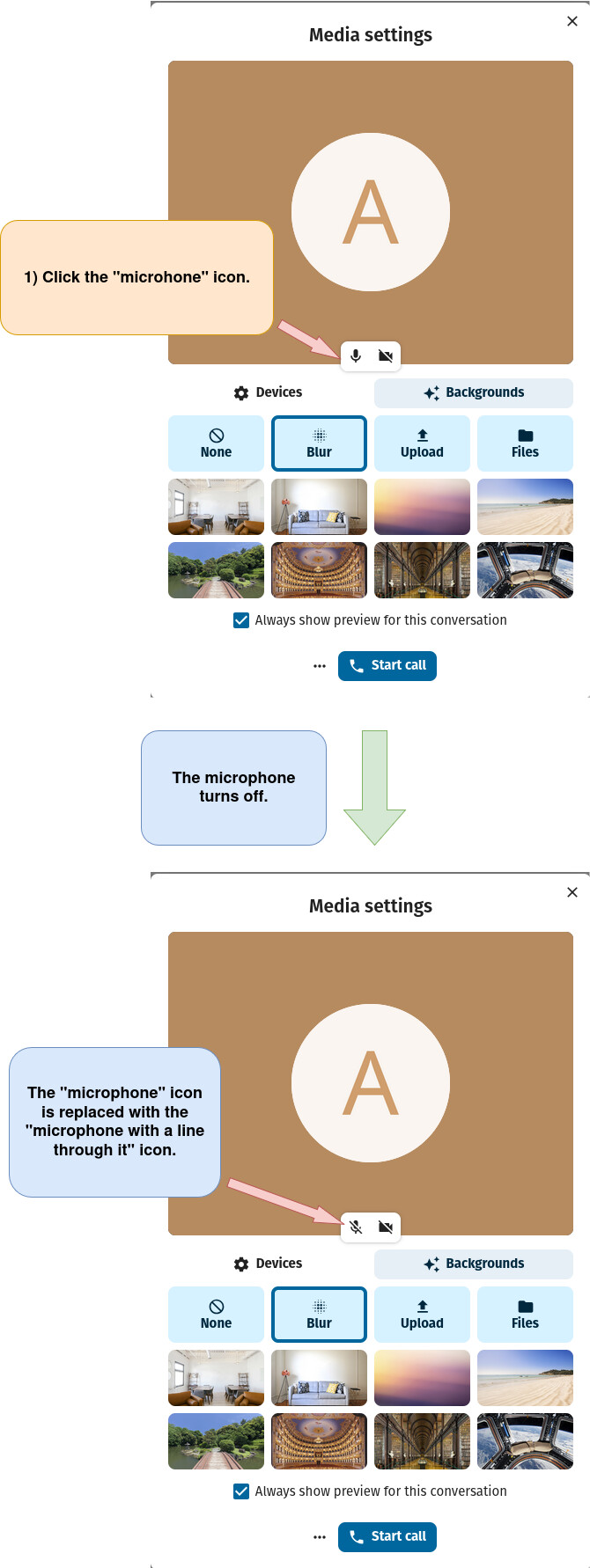
4) Turn off microphone.