Configure Nextcloud Talk Conversations Using The “Talk Settings” Window, Comprehensive Guide
1) Log in to Nextcloud.
2) Navigate to Nextcloud Talk as described here.
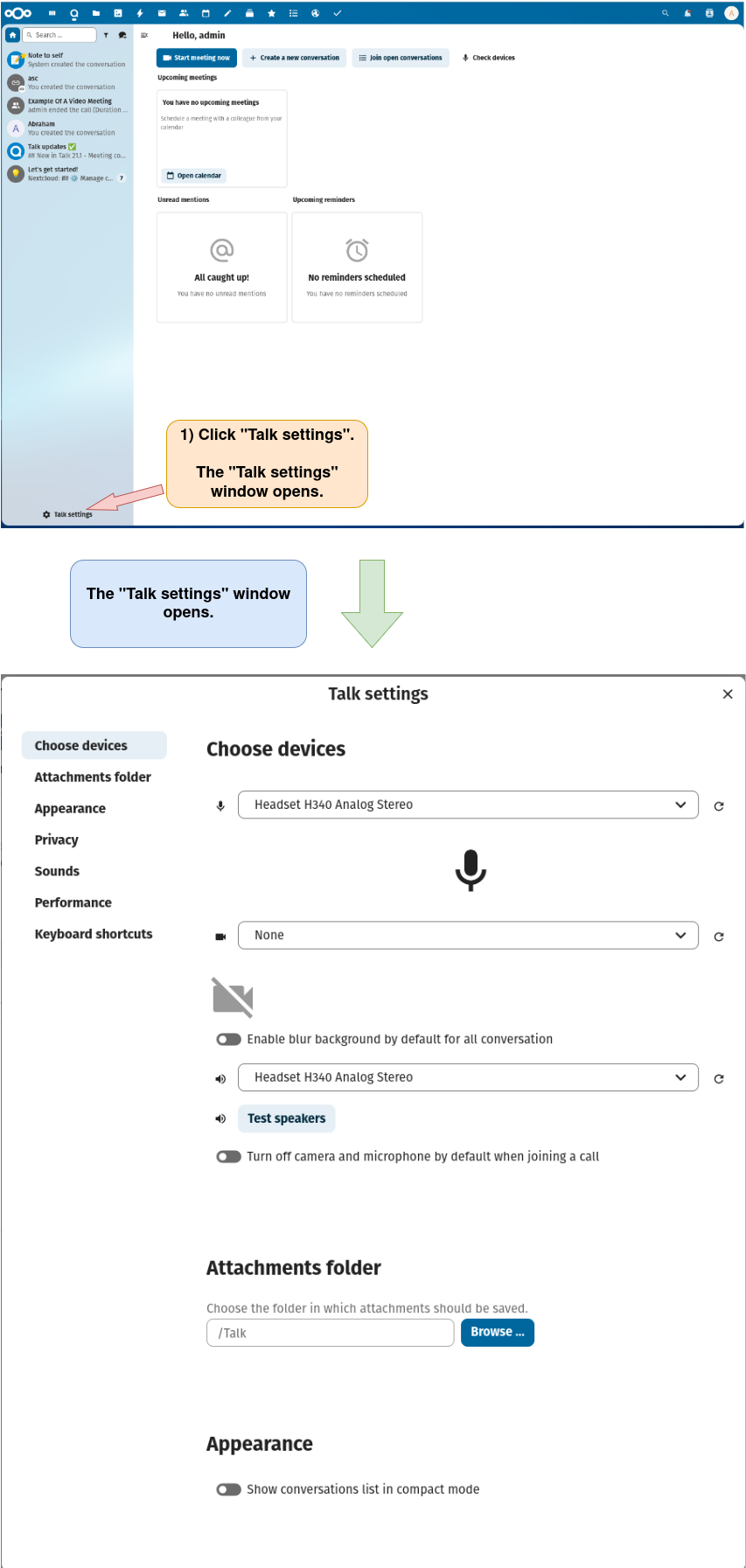
3) Open the “Talk settings” window.
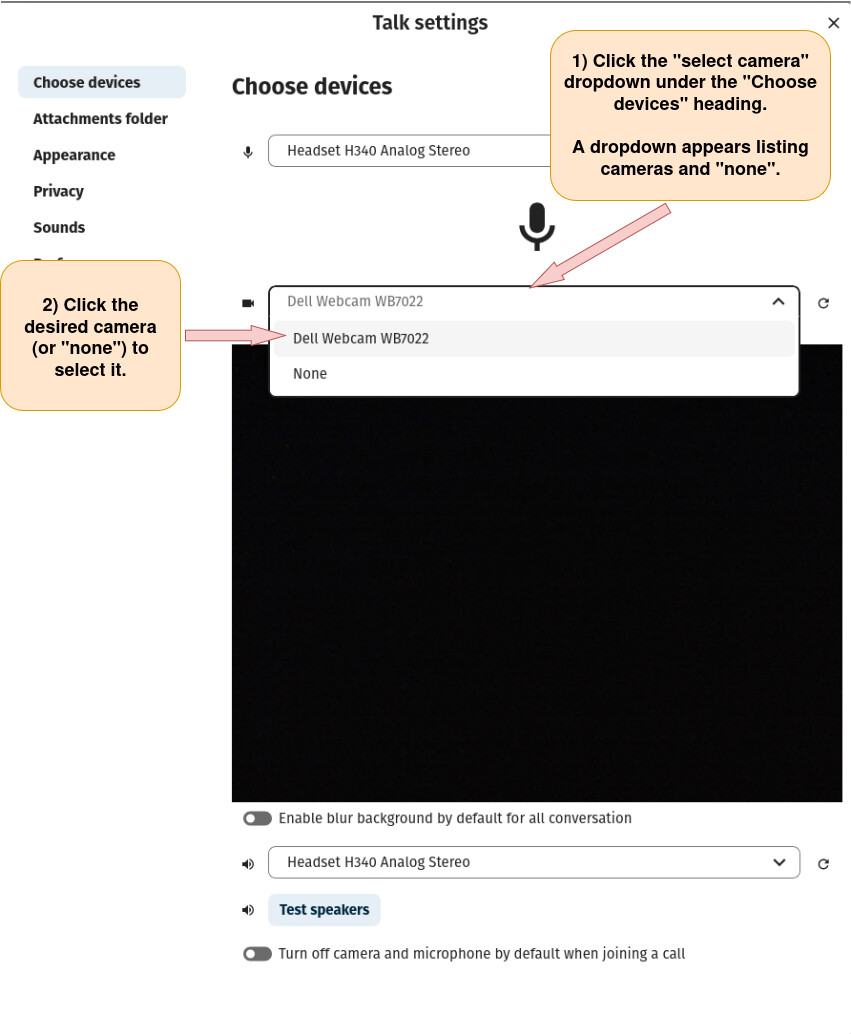
4) Select the camera (or no camera) to use during a Nextcloud Talk video meeting.
5) Select the microphone (or no microphone) to use during a Nextcloud Talk video meeting.
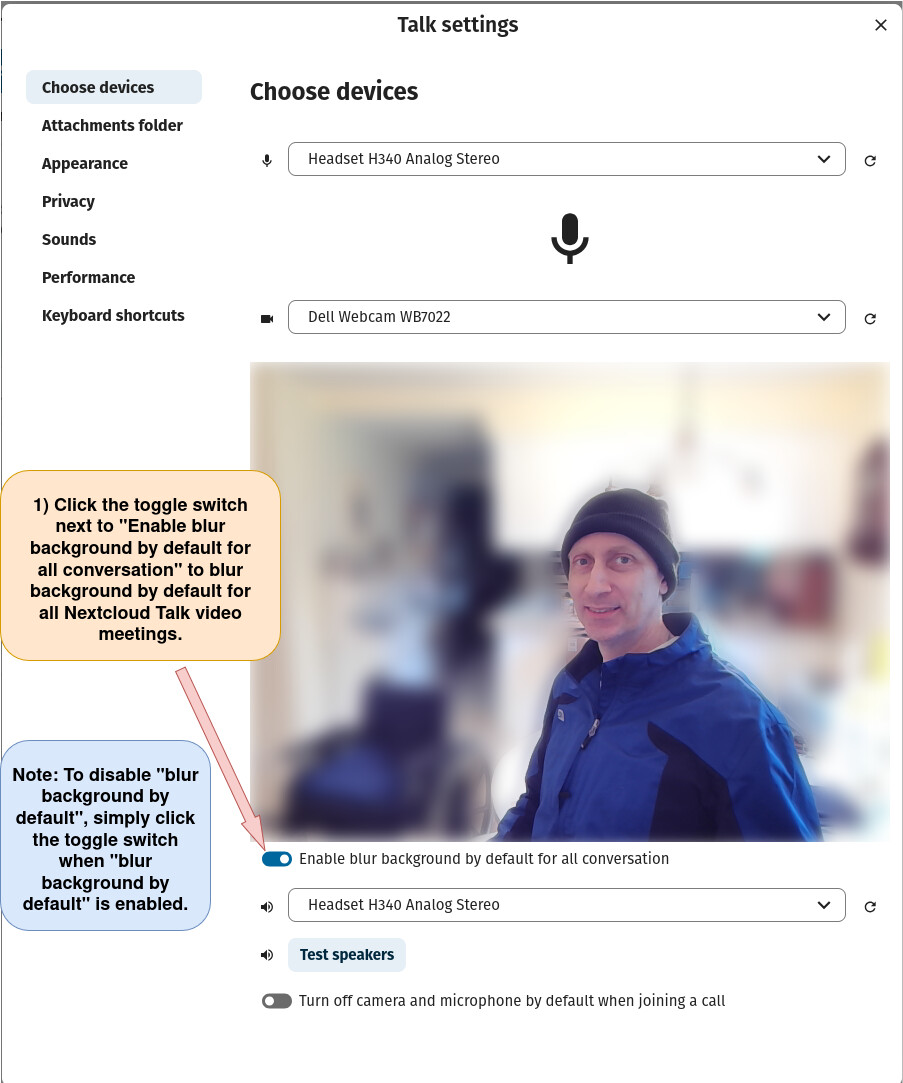
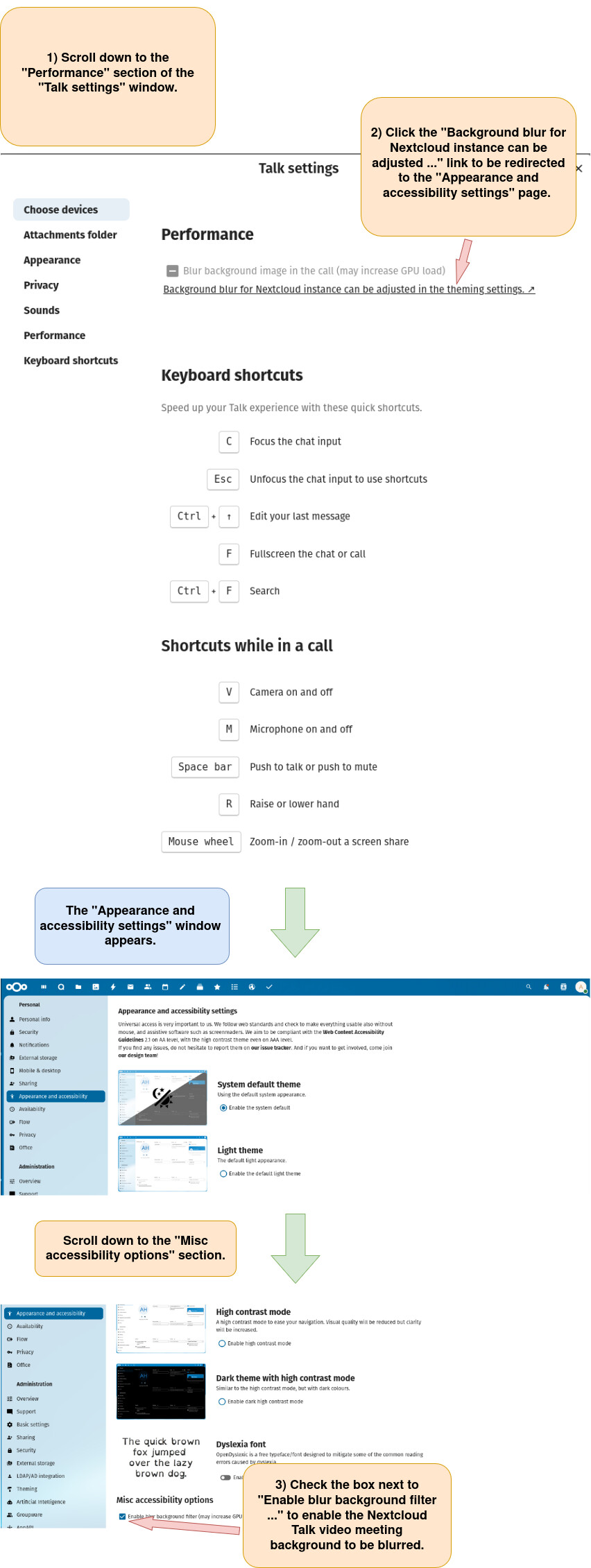
6) Enable (or disable) blurred background by default for Nextcloud Talk conversations or video meetings.
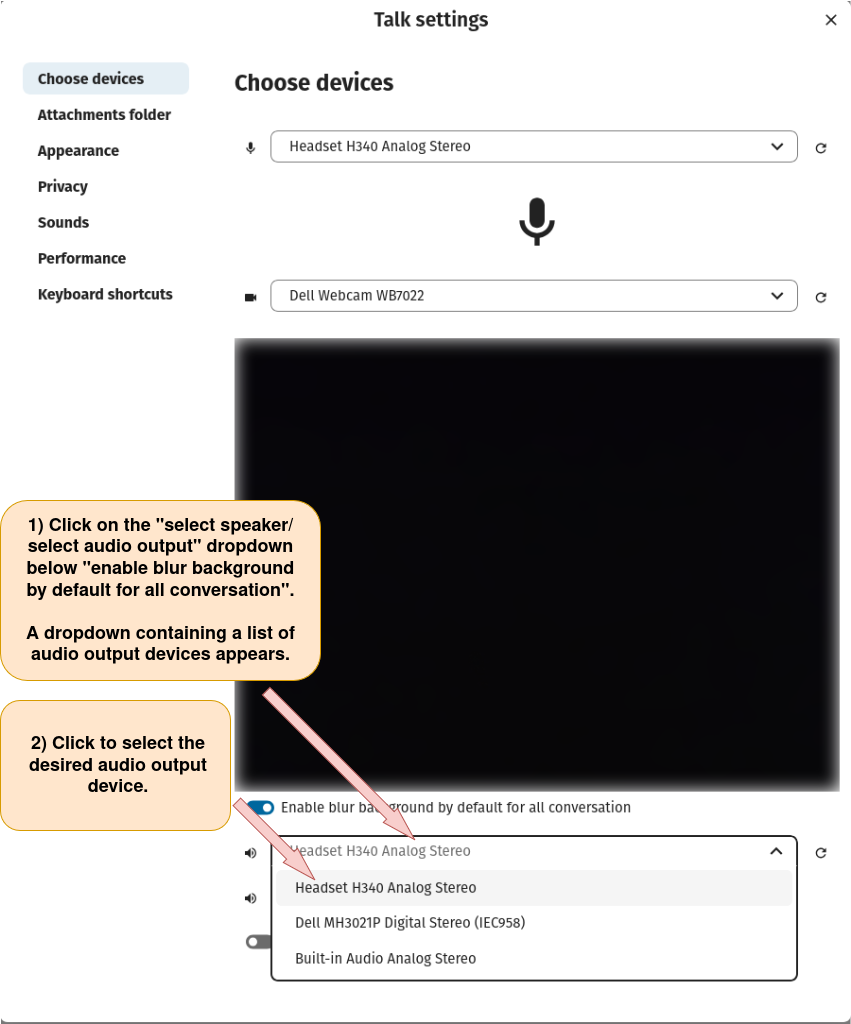
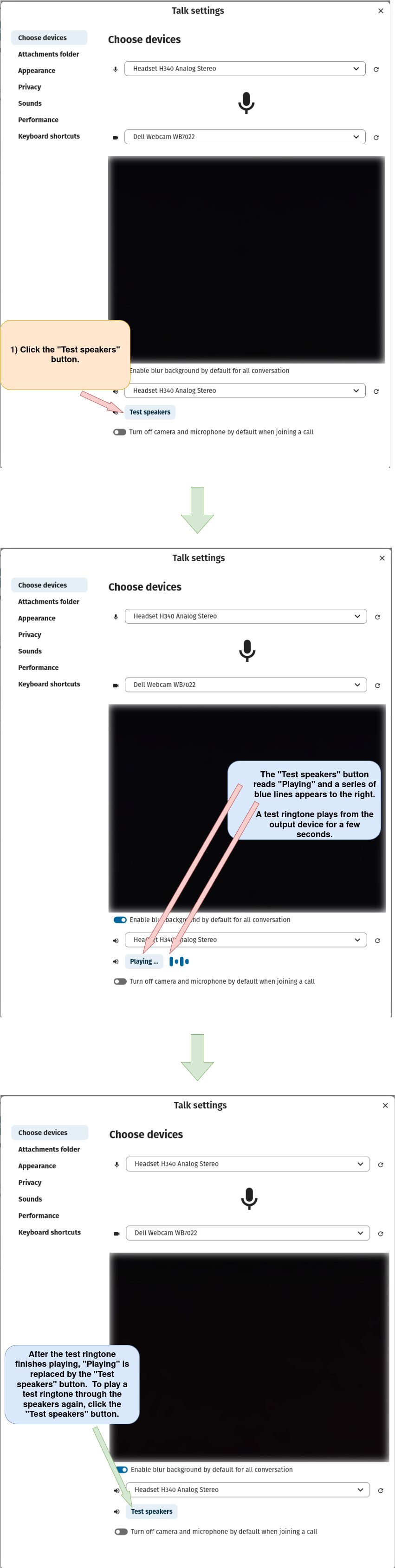
7) Select the speaker/audio output to use for a Nextcloud Talk conversations or video meetings.
8) Test speakers/audio output device used for Nextcloud Talk conversations or video meetings.
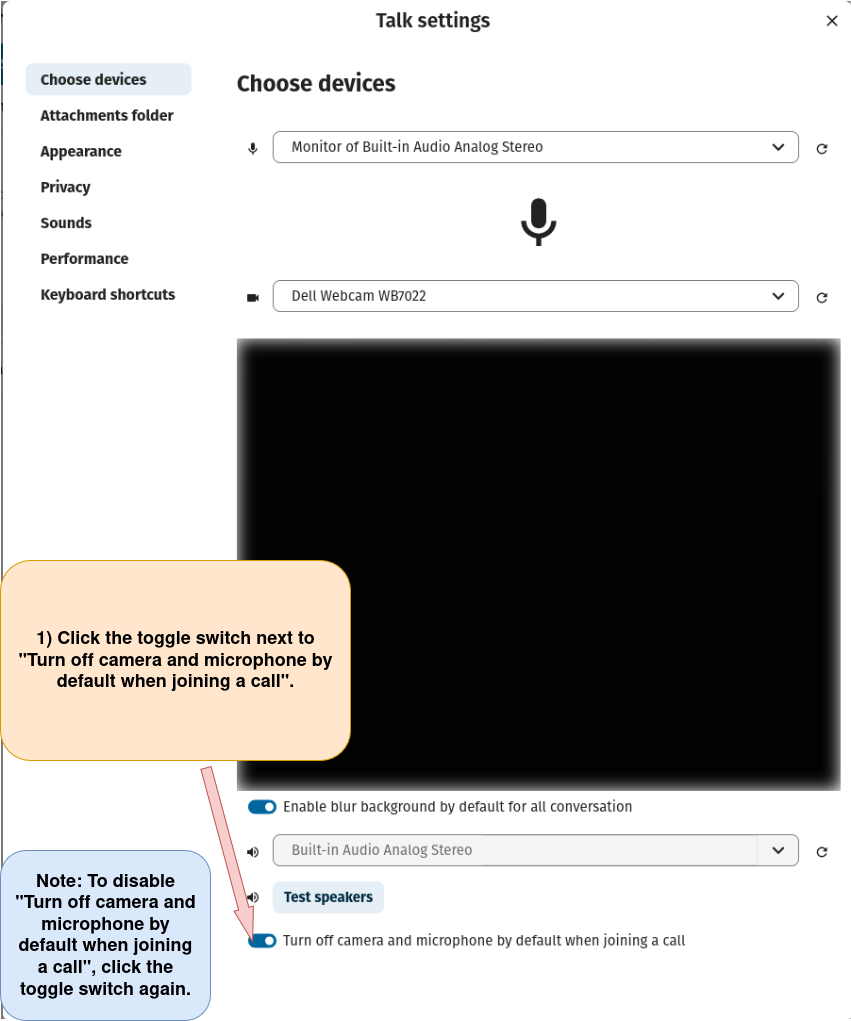
9) Enable “Turn off camera and microphone by default when joining a call.”
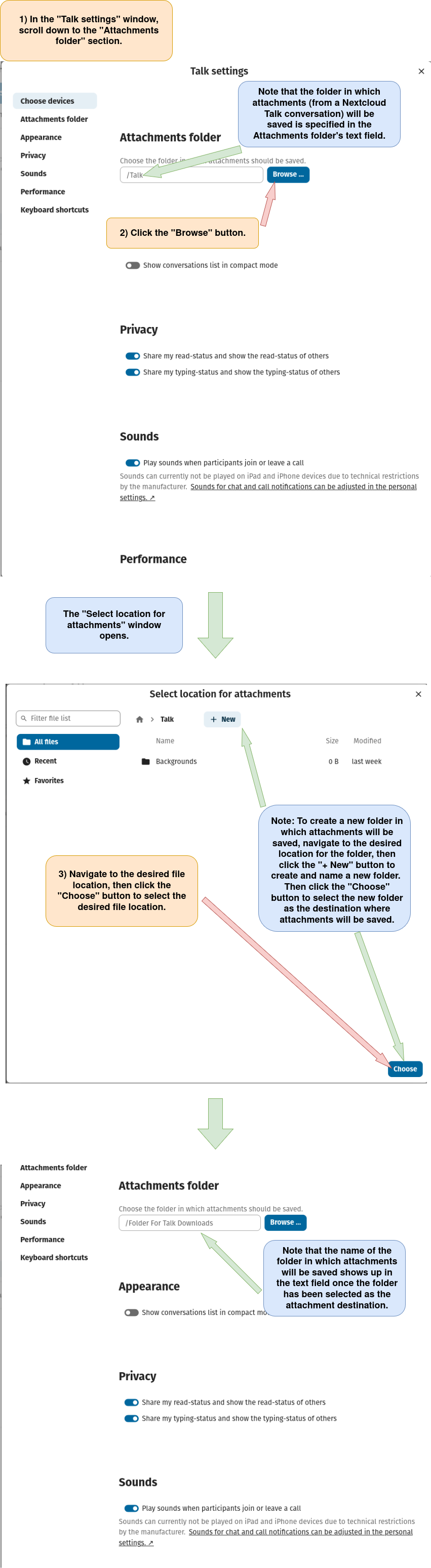
10) Select the folder in which attachments from a Nextcloud Talk conversation or video meeting will be saved.
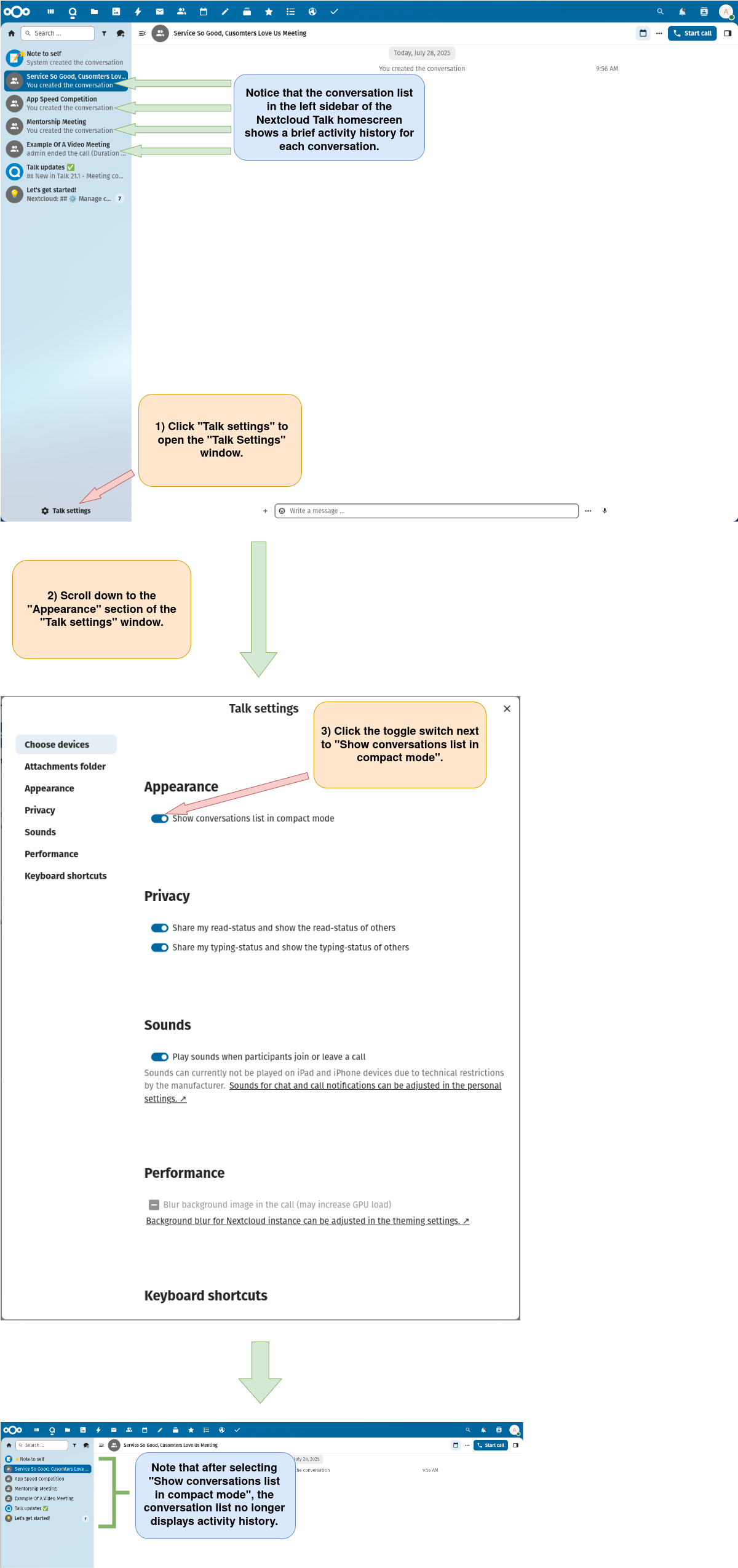
11) Show conversation list in compact mode.
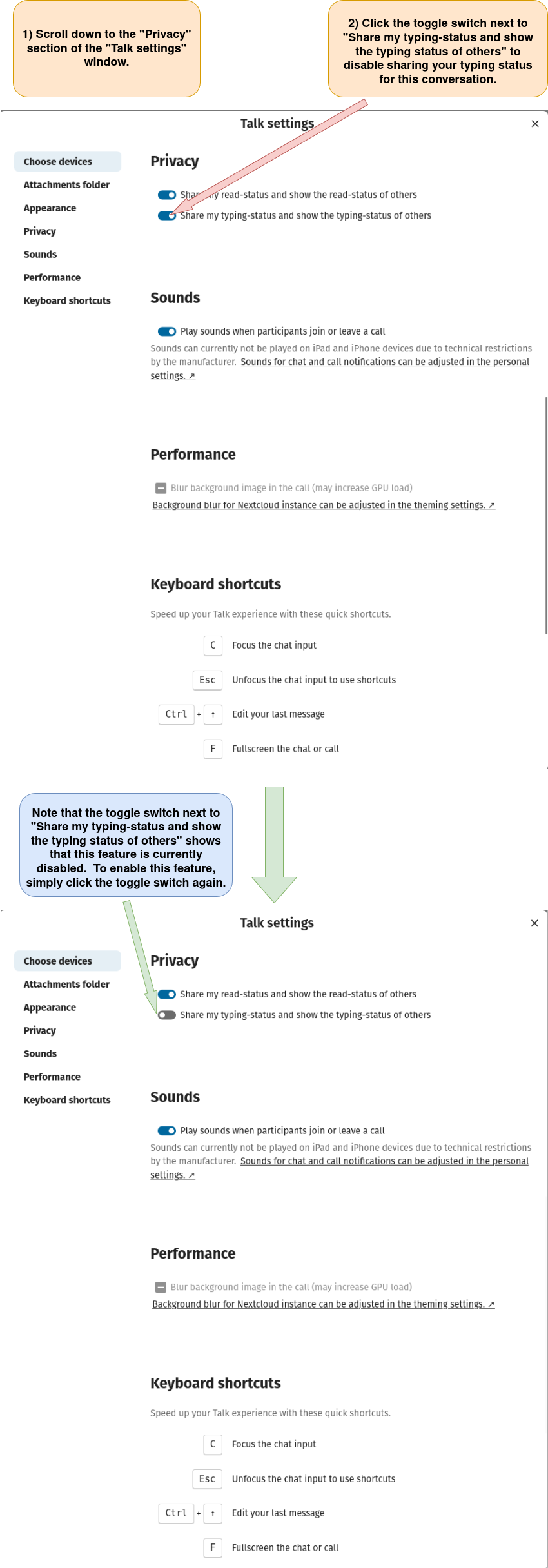
12) Enable Nextcloud Talk conversation participants’ read-status to be shared and shown with other conversation participants.
13) Enable Nextcloud Talk conversation participants’ typing status to be visible to other conversation participants.
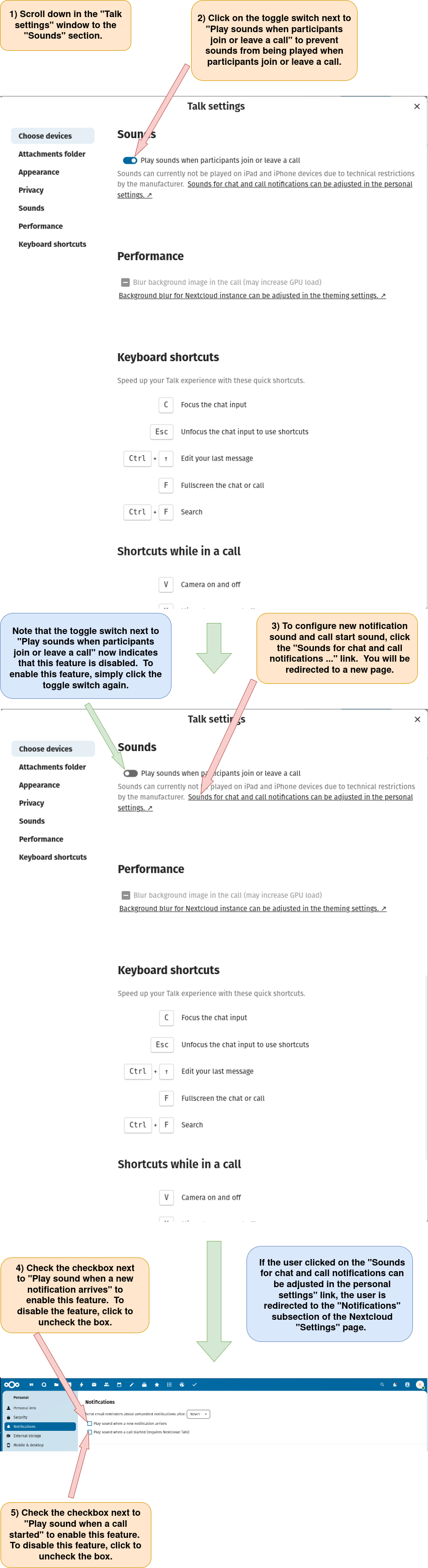
14) Enable or disable sounds to be played when participants join or leave a call, when a new notification arrives, or when a call starts.
15) Enable the background in a Nextcloud Talk video meeting to be blurred.
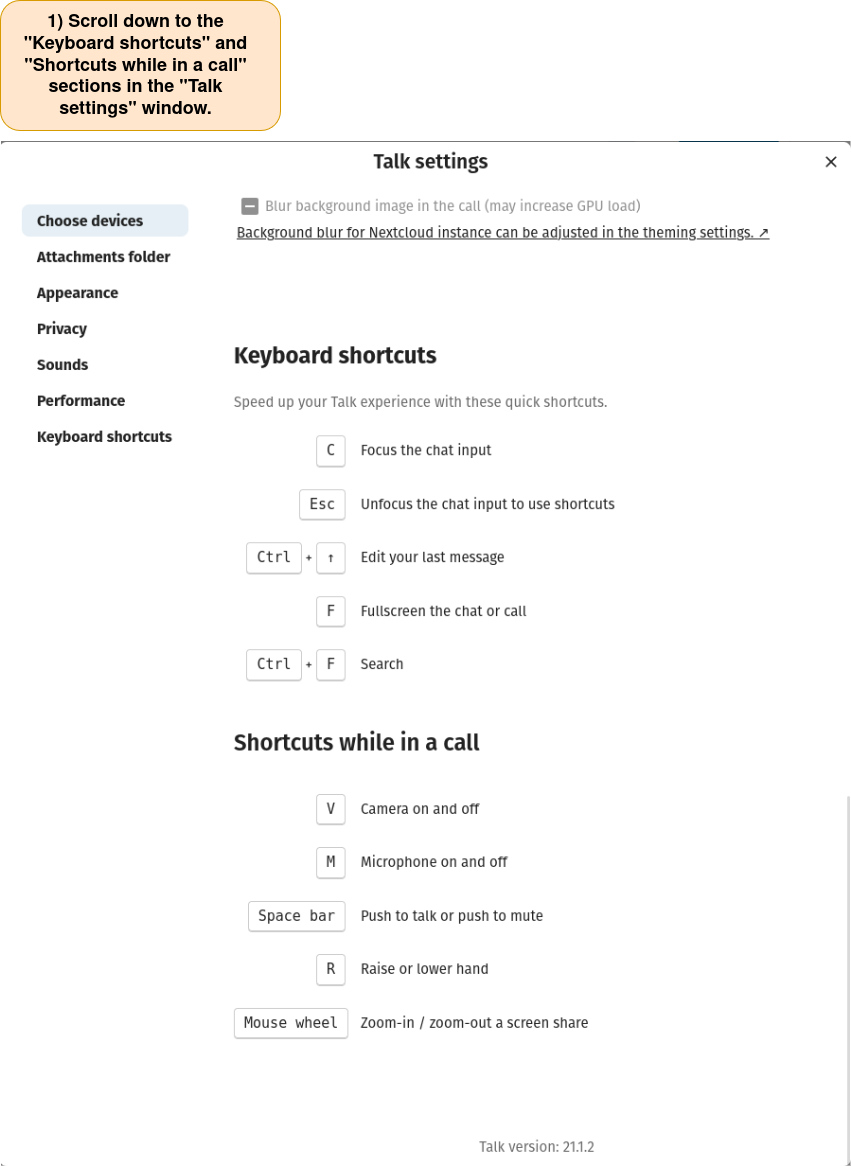
16) View Nextcloud Talk “Keyboard shortcuts” and “Shortcuts while in a call”.